PDF Templates
The PDF Templates module lets you create reusable document templates for generating PDFs from SuiteCRM records. Templates support dynamic field variables, line item tables, headers, footers, and configurable margins. Once created, a template can be used to generate a PDF from any record of the matching module type.
Creating a PDF Template
-
Navigate to the PDF Templates module and click Create PDF Template.
-
Fill in the template fields (see below).
-
Build the template body using the WYSIWYG editor.
-
Click Save.
Template Fields
Name |
The name of the template. |
Type |
The module this template applies to: Quotes, Invoices, Contracts, Accounts, Contacts, or Leads. Only templates matching the module type will appear when generating a PDF from a record. |
Active |
When enabled, the template appears in the template selector when generating PDFs. Inactive templates are hidden from users. |
Assigned to |
The user assigned to this template record. |
Load Sample |
Loads a pre-built sample into the body, overwriting any existing content (a warning is shown first). Seven samples are available: Quote Sample, Quote Group Sample, Invoice Sample, Invoice Group Sample, Account Sample, Contact Sample, and Lead Sample. The Quote Group and Invoice Group samples demonstrate the line items table structure for grouped line items. |
Page Size |
A4 (default), Letter, or Legal. |
Orientation |
Portrait (default) or Landscape. |
Inserting Field Variables
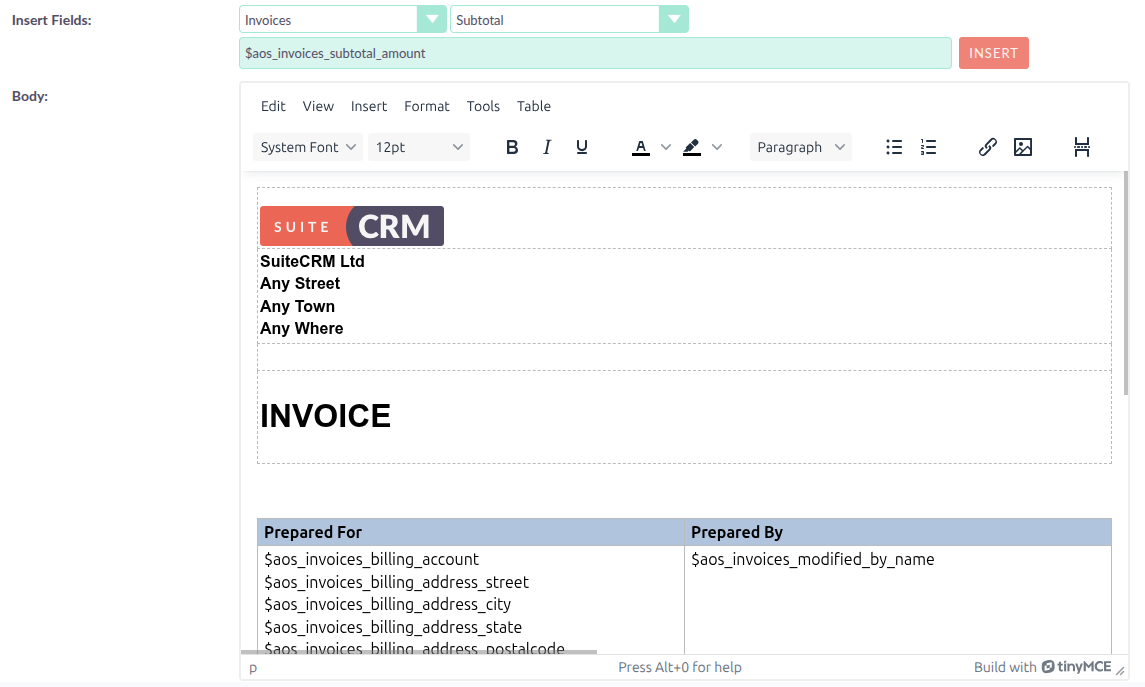
The Insert Fields row above the body editor inserts dynamic variables that are replaced with record data when the PDF is generated.
-
In the first dropdown, select the module to pull data from — either the template’s own module (e.g. Quotes) or a related module (e.g. Accounts on a Quote template).
-
In the second dropdown, select the field. The variable name populates the text field to the right.
-
Place your cursor in the body at the insertion point, then click Insert.
Variables follow the format $moduledirectory_fieldname — for example, $aos_invoices_number inserts the invoice number, and $aos_quotes_billing_account inserts the billing account name from a Quote.
Line Items
For Quote, Invoice, and Contract templates, line item data (products, quantities, prices, totals) must be placed inside an HTML table in the body. The sample templates (Quote Sample, Quote Group Sample, Invoice Sample, Invoice Group Sample) demonstrate the correct table structure and are the recommended starting point for building line item templates.
Headers, Footers, and Margins
The Header and Footer fields below the body accept the same WYSIWYG markup as the body and appear on every page of the generated PDF. Two special variables are available:
-
{PAGENO}— inserts the current page number -
{DATE d.m.Y}— inserts today’s date using PHP date format codes; for example,{DATE Y-m-d}produces 2025-12-31
Six margin fields control the page layout (all values in millimetres):
Margin Left / Right |
15 mm default |
Margin Top / Bottom |
16 mm default |
Margin Header / Footer |
9 mm default — distance from the page edge to the header or footer content |
Generating PDFs
From a Record
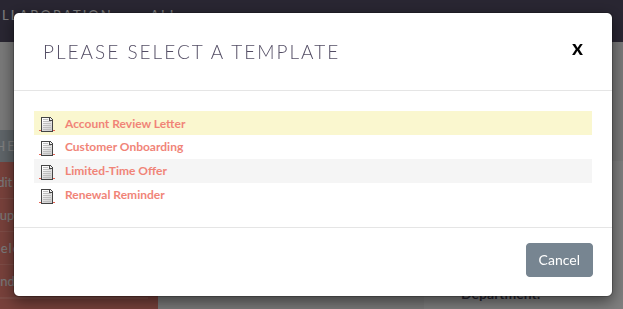
From any record’s Detail View, open the action menu and click Print as PDF. A template selector popup appears listing all active templates for that module type. Select a template to generate and download the PDF.
SuiteCRM automatically creates a Note record linked to the source record with the generated PDF attached.
For Quotes, Invoices, and Contracts, Email PDF is also available from the action menu. This opens the Compose screen with the generated PDF attached and the record’s Contact pre-filled as the recipient. See Quotes, Invoices and Contracts for details on all PDF and email sending options for those modules.
Bulk PDF Generation
From the list view, select the records you want, then choose Print as PDF from the bulk action menu. Select a template from the popup. SuiteCRM generates a single merged PDF containing all selected records and downloads it. An individual Note record with the PDF attached is created for each selected record.
Managing PDF Templates
From the PDF Templates list view you can:
-
Search: use Search or Advanced Search to filter templates
-
Export: select records and use the bulk action menu to export
-
Mass update: edit or delete multiple templates at once using Mass Update
-
Duplicate: open a template’s action menu and click Duplicate to create a copy as the basis for a new template
-
View Change Log: track changes to a template’s fields from the Detail View