Calendar
The Calendar gives you a visual overview of your scheduled Meetings, Calls, and Tasks. You can navigate between day, week, month, and year views, create and edit activities directly on the calendar, and view other users' schedules alongside your own.
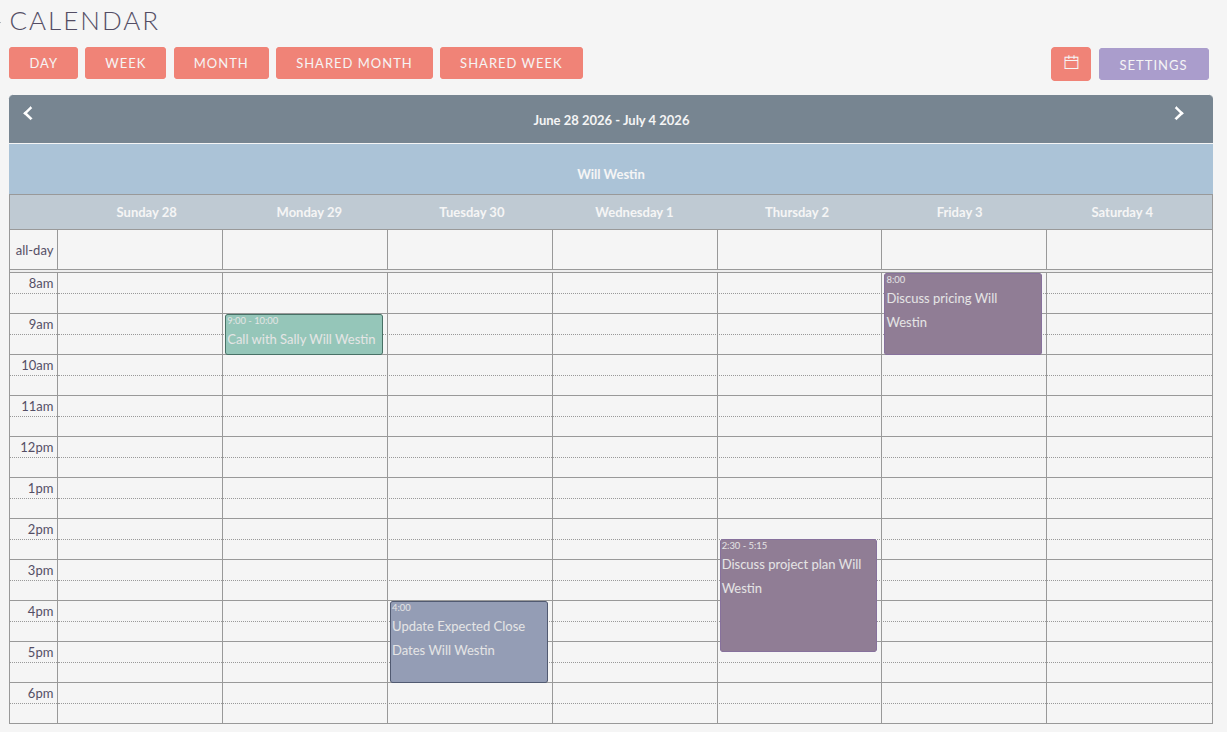
The Calendar is presented within SuiteCRM’s classic interface, embedded in the main application shell. Its layout and interactions differ slightly from the modern record and list views used elsewhere in SuiteCRM.
Views
Use the view buttons at the top of the calendar to switch between:
-
Day: hourly time slots for a single day
-
Week: hourly time slots across seven days (the default view)
-
Month: a full month grid
-
Year: a full year overview
-
Shared Week / Shared Month: your calendar and selected colleagues' calendars displayed together (see Shared Calendars)
Use the Previous and Next arrows to move between periods, or click Today to return to the current date. Click the calendar icon to jump to a specific date.
Creating Activities
Click a Time Slot
Click any empty time slot in Day or Week view to open a quick-create dialog. Select Meeting or Call, fill in the subject and duration, and click Save. To add invitees or set recurrence, use the Invitees or Recurrence tabs before saving, or open the full form by clicking Full Form.
From the Sidebar or Module Menu
The Calendar sidebar and module menu provide direct links to create activities:
-
Schedule Meeting: opens the Meetings Edit View
-
Schedule Call: opens the Calls Edit View
-
Create Task: opens the Tasks Edit View
Activities created from the calendar are identical to those created in their own modules. See Calls and Meetings and Tasks for full field details.
Editing and Rescheduling Activities
Click any event to open the quick-edit dialog, where you can update the subject, time, duration, status, and related record without leaving the calendar.
Drag an event to a new time slot to reschedule it instantly. Drag the bottom edge of an event to change its duration. Both changes are saved automatically.
Recurring Activities
Meetings and Calls can be set to repeat on a schedule. Open the Recurrence tab when creating or editing an activity to configure:
-
Repeat type: Daily, Weekly, Monthly, or Yearly
-
Interval: how often the recurrence repeats (e.g. every 2 weeks)
-
Days of the week: for weekly recurrences, which days the activity falls on
-
End: after a set number of occurrences or by a specific date
When editing a recurring activity, you can choose to update only the selected occurrence or all future occurrences.
Shared Calendars
The Shared Week and Shared Month views display your calendar alongside the calendars of other users you select.
Click User List to open the user selection panel. Search by name or filter by team to find colleagues, then select the users whose calendars you want to include. Use the up and down arrows to change the order in which their calendars appear.
By default, each user’s calendar is displayed in a separate section. To merge all events into a single view, open Calendar Settings and turn off Display shared calendars separately.
Calendar Settings
Click Settings to configure your personal calendar preferences.
Display
-
Display time slots: when on, Day and Week views show an hourly grid; when off, they show a simplified list of events
-
Day starts at / Day ends at: set the working hours visible in Day and Week views (default 08:00–19:00)
-
Show Calls: include or hide Calls from the calendar
-
Show Tasks: include or hide Tasks from the calendar
-
Show completed activities: include or hide activities with a Completed status
-
Display shared calendars separately: show each user’s calendar in its own section, or merge all into one
Colours
The Colours tab lets you set the background, border, and text colour for each activity type (Meetings, Calls, Tasks) to make them easy to distinguish at a glance.
Calendar Dashlet
A compact version of the calendar can be added to your Home page as a Dashlet. See Homepage and Dashboards for how to add and configure Dashlets.
Calendar Sync
To synchronise the SuiteCRM calendar with Google Calendar or a CalDAV application, see Calendar Sync.