Notifications
Notifications alert you when you are invited to a Meeting or Call, and when reminders for those activities are due. You can access them from most pages using the bell icon in the top navigation bar. The number of unread notifications is shown as a badge on the bell icon, and a brief pop-up banner appears at the top of the screen when new notifications arrive.
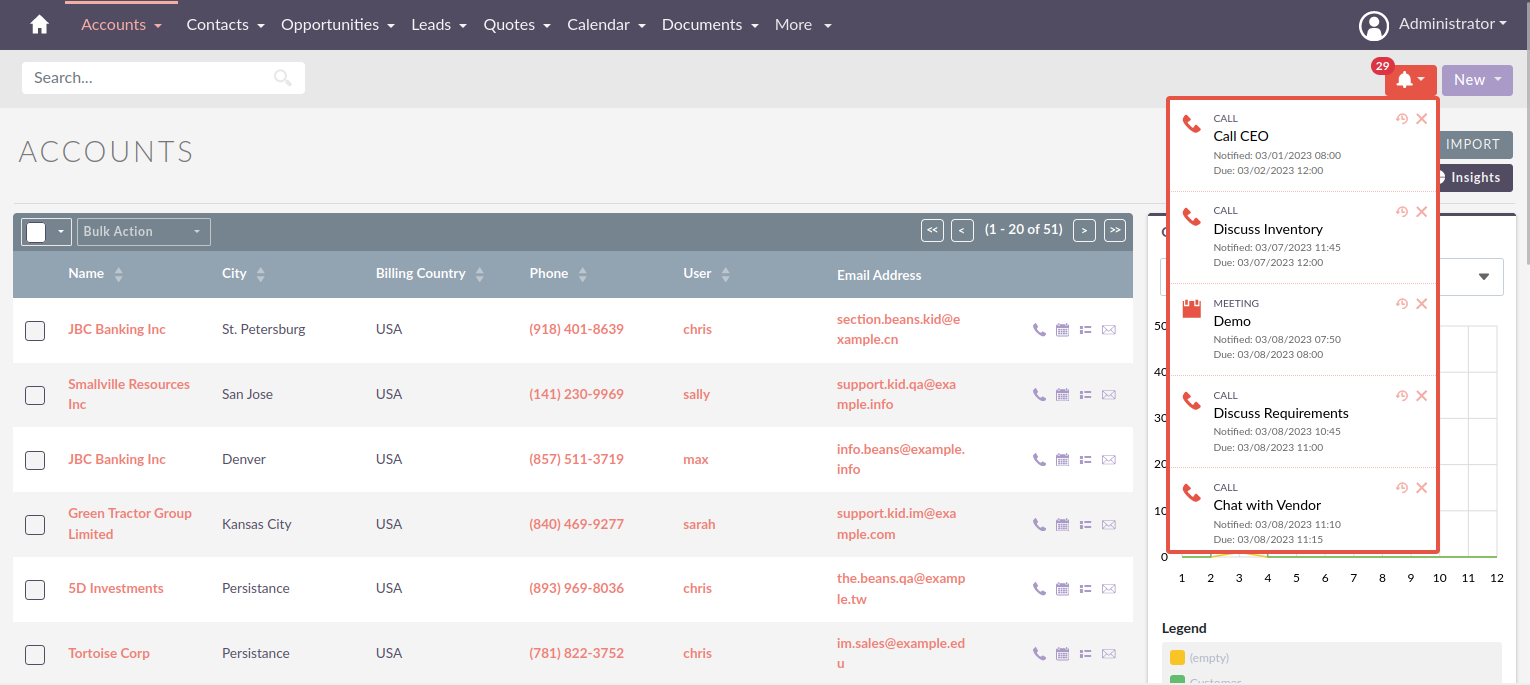
By default, notifications are checked every minute.
The refresh frequency and maximum number of notifications shown can be configured by a developer. See Notifications Configuration.
Snoozing and Dismissing Notifications
Each notification in the panel has two action icons on the right:
-
Snooze (clock icon) — snoozes the notification and removes it from the panel temporarily. It will reappear after the configured snooze interval.
-
Dismiss (X icon) — permanently dismisses the notification.
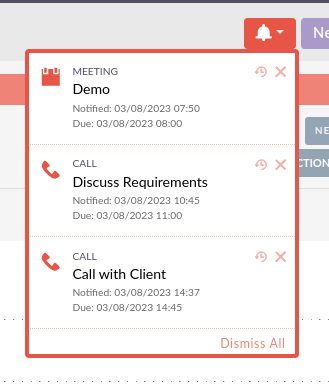
To dismiss all visible notifications at once, click Dismiss All at the bottom of the panel.
Configuring the Snooze Duration
You can set how long notifications are snoozed from the Advanced tab of your User Profile.
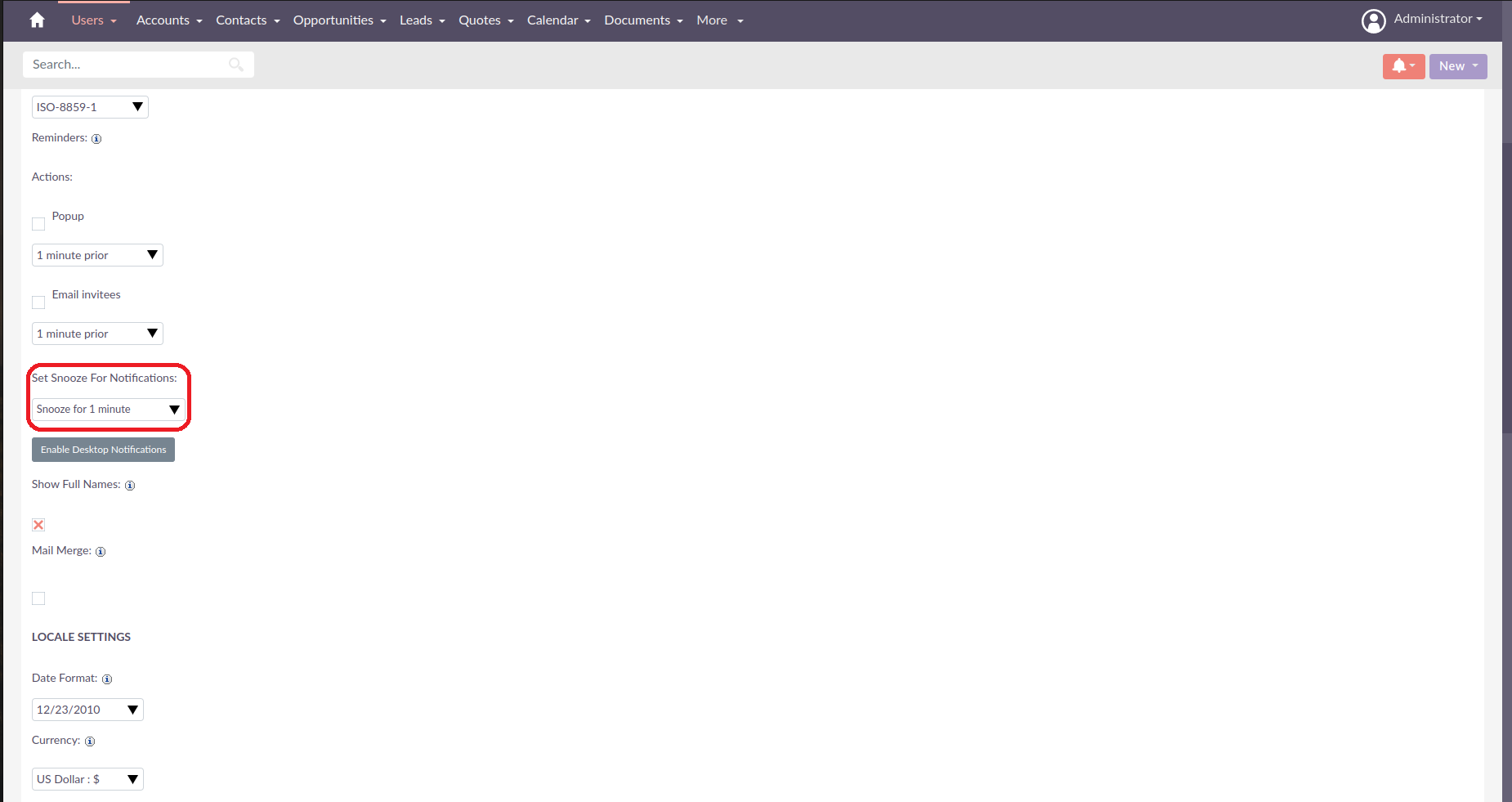
A system-wide default snooze duration can also be configured by your system administrator.
Load More
If you have more notifications than are currently shown, a Load More button appears at the bottom of the panel. Click it to load 10 more notifications.