    'LBL_PANEL_ADVANCED' =>
        [
            'newTab' => true,
            'panelDefault' => 'expanded',
            'displayLogic' => [
                'hide_on_name' => [
                    'key' => 'displayType',
                    'modes' => [
                        0 => 'detail',
                        1 => 'edit',
                        2 => 'create',
                    ],
                    'targetDisplayType' => 'hide',
                    'params' => [
                        'fieldDependencies' => [
                            'name'
                        ],
                        'activeOnFields' => [
                            'name' => [
                                'Example'
                            ],
                        ],
                    ],
                ],
            ],
        ],
> SuiteCRM 8 Guide > Developer Guide > Extensions > Front-end > Front-end Logic Examples > Panel & Action Display Logic
Panel & Action Display Logic
There are several ways to customize field and view metadata. You can use custom vardefs, custom viewdefs, field definition mappers, or other extension mechanisms. For a full overview of all approaches see Customizing View Metadata.
1. Introduction
Display logic allows you to define rules to hide and show panels/tabs, or record action buttons, depending on other fields' values. Both use the same displayLogic mechanism in view metadata - only the array they’re nested under differs (tabDefs for panels/tabs, recordActions for action buttons).
2. Panel/Tab Display Logic
2.1 Example scenario
As an example we will hide the More Information tab on Accounts if the Name is Example.
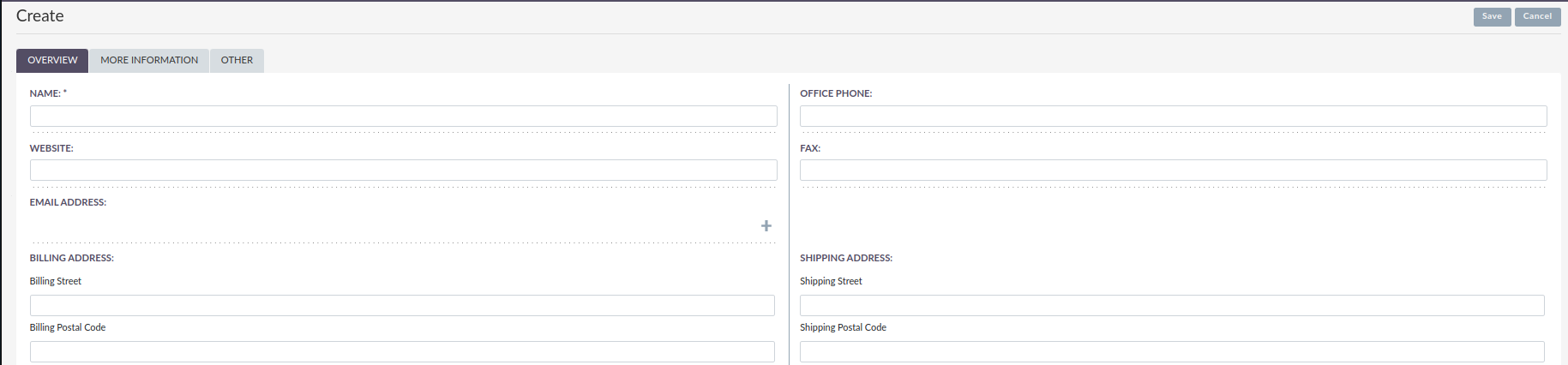
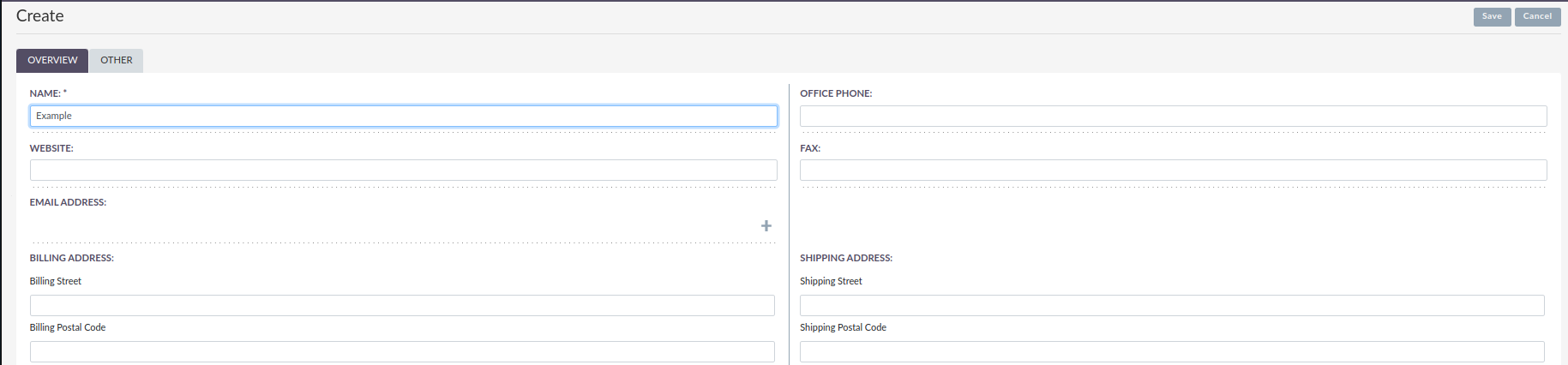
2.2 Logic Metadata definition
The first thing to define is the displayLogic entry in the metadata. This is where we are going to define the triggers for hide/display our panel.
The configuration for the logic can be added only to detailviewdefs.php.
When adding this code be sure to add it below newTab within the tabDefs.
In the following example we are going to add them to the Accounts module detailviewdefs.php.
2.2.1 Steps to add the logic on the custom detailviewdefs.php
-
Copy the core Accounts
detailviewdefs.phpto the custom folder:-
From:
public/legacy/modules/Accounts/metadata/detailviewdefs.php -
To:
public/legacy/custom/modules/Accounts/metadata/detailviewdefs.php
-
-
Replace the
LBL_PANEL_ADVANCEDentry on the customdetailviewdefs.phpwith the code on the snippet below-
Re-set permissions if needed (will depend on your setup)
-
-
Run
Repair and Rebuildon Admin menu
2.3 Properties Description
-
Key
-
The
keywithin the nameddisplayLogicarray is stating which logic type will be used for the following. In this case it’sdisplayType.
-
-
Modes
-
Modes are views you would like your
requiredlogic to take effect on, as shown above it will bedetail,editandcreate. Another example of amodethat could be selected could belistfor example.
-
Field Dependencies
fieldDependencies is where you declare the field(s) that you would like your logic to depend on.
'fieldDependencies' => [
    'name',
]
Active on Fields
activeOnFields is where you declare the field/values that trigger the change of the tab to be shown/hidden.
In the example above we have the tab More Information to hide when name is Example.
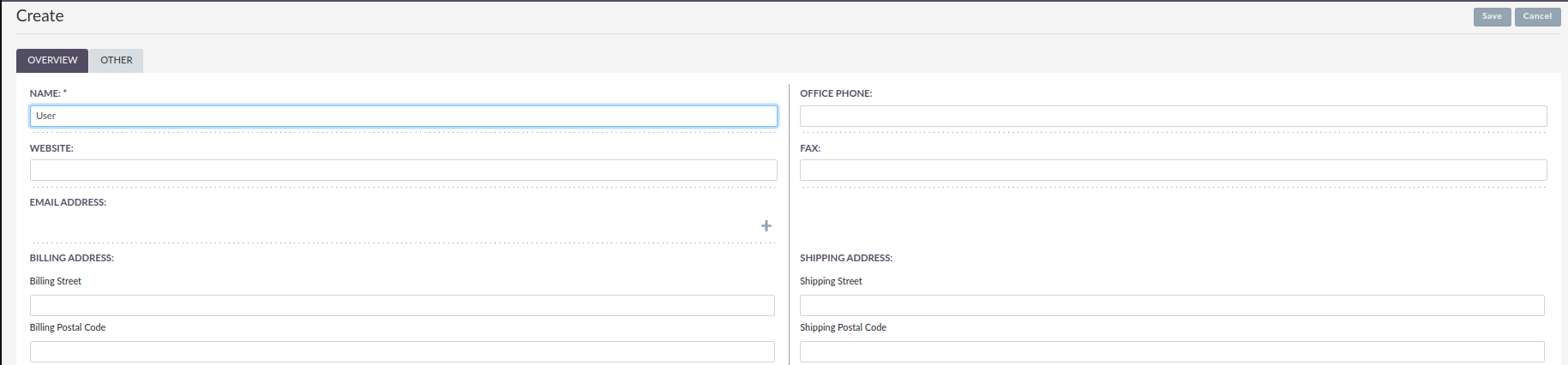
If we wanted it to hide if it was either Example or another value such as User then a new value would be added like so:
'activeOnFields' => [
  'name' => ['Example', 'User'],
],
Target Display Type
targetDisplayType should be either show or hide.
If you have a tab you would like to hide until a field has a certain value, you can add 'display' ⇒ 'hide':
    'LBL_PANEL_ADVANCED' =>
        [
            'newTab' => true,
            'display' => 'hide',
            'panelDefault' => 'expanded',
            'displayLogic' => [
                'hide_on_name' => [
                    'key' => 'displayType',
                    'modes' => [
                        0 => 'detail',
                        1 => 'edit',
                        2 => 'create',
                    ],
                    'targetDisplayType' => 'show',
                    'params' => [
                        'fieldDependencies' => [
                            'name'
                        ],
                        'activeOnFields' => [
                            'name' => [
                                'Example',
                            ],
                        ],
                    ],
                ],
            ],
        ],
3. Action Display Logic
3.1 Example Scenario
As an example of how to hide / show a button, we are going to create a new button on the Contacts module and hide/show the button depending on another field’s value.
3.2 Logic Metadata definition
The first thing to define is the new button that is being used.
Then we are going to define the displayLogic entry which will define the triggers to hide/show the button.
In the following example we are going to add the button to the Contacts module detailviewdefs.php.
3.2.1 Steps to add the logic on the custom viewdef
To set up adding the button to your view. First:
-
Create a new
metadatafolder within thepublic/legacy/custom/modules/Contactsdirectory. -
Create a new file within the
metadatafolder calleddetailviewdefs.php. -
Copy the contents of
/modules/Contacts/metadata/detailviewdefs.phpand paste in the newly created file.
Within the recordActions→`actions` array, add your custom button here. for example:
        "recordActions" => [
            "actions" => [
                "print-as-pdf" => [
                    "key" => "print-as-pdf",
                    "labelKey" => "LBL_PRINT_AS_PDF",
                    "asyncProcess" => true,
                    "modes" => ["detail"],
                    "acl" => ["view"],
                    "aclModule" => "AOS_PDF_Templates",
                    "params" => [
                        "selectModal" => ["module" => "AOS_PDF_Templates"],
                    ],
                ],
                "send_fax" => [
                    "key" => "send_fax",
                    "display" => "hide",
                    "asyncProcess" => true,
                    "labelKey" => "LBL_SEND_FAX",
                    "modes" => ["detail"],
                    "acl" => ["view"],
                    "displayLogic" => [
                        "send_fax_visibility" => [
                            "modes" => [
                                0 => "detail",
                                1 => "edit",
                                2 => "create",
                            ],
                            "params" => [
                                "activeOnFields" => [
                                    "phone_fax" => ["01234 999999"],
                                ],
                            ],
                        ],

                    ],
                ],
            ],
        ],
In the example above we have the button to show if the Phone Fax field is the number shown then the button will show
on the frontend to Send a Fax to the contact.
In this example you can see the key modes is used. This is used to set the views where the button will show/hide.
3.3 Display Logic Examples
When setting displayLogic on a button, all Logic Operators work here the same as they do for other display logic.
Below are some examples using different operators to hide/show the button.
OR
When defining display logic you can set the button to show based on one field’s value, that field with another value, or a new field with its own value.
                    "displayLogic" => [
                        "custom_action_visibility" => [
                            "modes" => [
                                0 => "detail",
                                1 => "edit",
                                2 => "create",
                            ],
                            "params" => [
                                "activeOnFields" => [
                                    "phone_fax" => ["01234 999999"],
                                ],
                            ],
                        ],
                        "send_fax_visibility" => [
                            "modes" => [
                                0 => "detail",
                                1 => "edit",
                                2 => "create",
                            ],
                            "params" => [
                                "activeOnFields" => [
                                    "phone_fax" => ["01234 5555555"],
                                ],
                            ],
                        ],
                    ],
Adding the above code your button will now show if the phone_fax field is set to "01234 5555555" OR "01234 999999".
AND
You can also use multiple criteria for the same field. For example if you wanted to add your button to show if the employees is greater than 5 and less than 100 then your code should look something like this:
                    "displayLogic" => [
                        "my_custom_button" => [
                            "modes" => [
                                0 => "detail",
                                1 => "edit",
                                2 => "create",
                            ],
                            "params" => [
                                'activeOnFields' => [
                                    'employees' => [
                                        [
                                            'operator' => 'greater-than',
                                            'value' => 5
                                        ],
                                        // AND
                                        [
                                            'operator' => 'less-than',
                                            'value' => 100
                                        ],
                                    ],
                                ],
                            ],
                        ],
                    ],
For more information on operators see here.