Managing Your Profile
There are many configuration options available to users once logged into the system. You can view/modify your preferences by clicking on your name in the top right section of the navigation menu and choosing the Profile option.

User Profile Tab
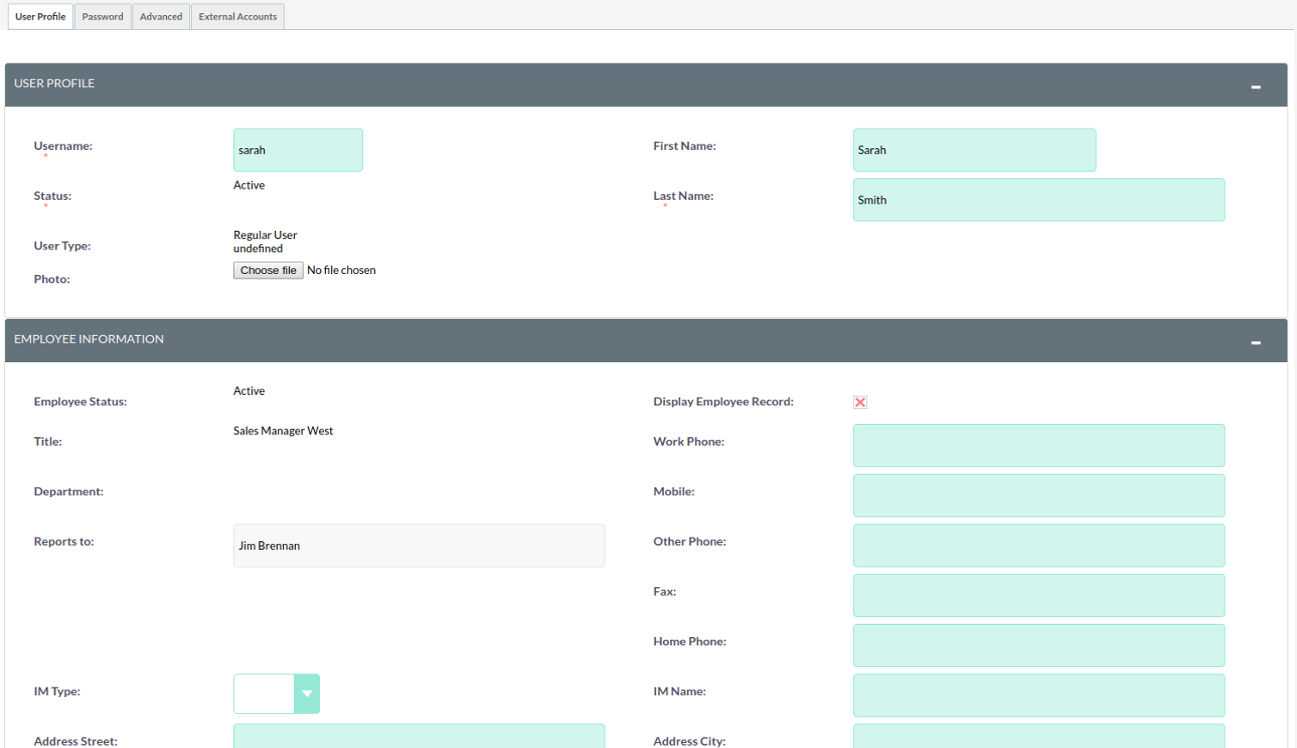
Once you have clicked to access your preferences, you will be taken to the 'User Profile' tab, which gives an overview of your credentials such as Username, First Name, Last Name, Title etc.
Personal Email Account Settings
For information on configuring personal inbound and outbound email accounts, see the Email Setup page.
Password Tab
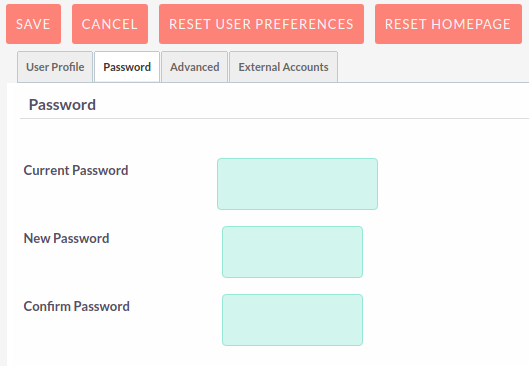
Clicking on the 'Password' tab will give you the opportunity to change your user account password, if required. To change your password, enter your current password first and then specify a new password and confirm it. It is recommended that passwords are secure. The recommended minimum requirement is one upper case character, one lower case character, one numerical character and a minimum password length of 8 characters.
If you have forgotten your password and cannot login, you can use the forgotten password functionality detailed in the Logging In section of this User Guide.
Advanced Tab
The Advanced tab provides you with you preferences that you set during the User Wizard process. This gives you the ability to change any of your user preferences, if there were any mistakes or if you require to amend these at a later date.

Desktop Notifications
The Advanced tab includes a setting to enable browser desktop notifications. When enabled, SuiteCRM will display browser popup alerts for upcoming Calls and Meetings that have a popup reminder set.
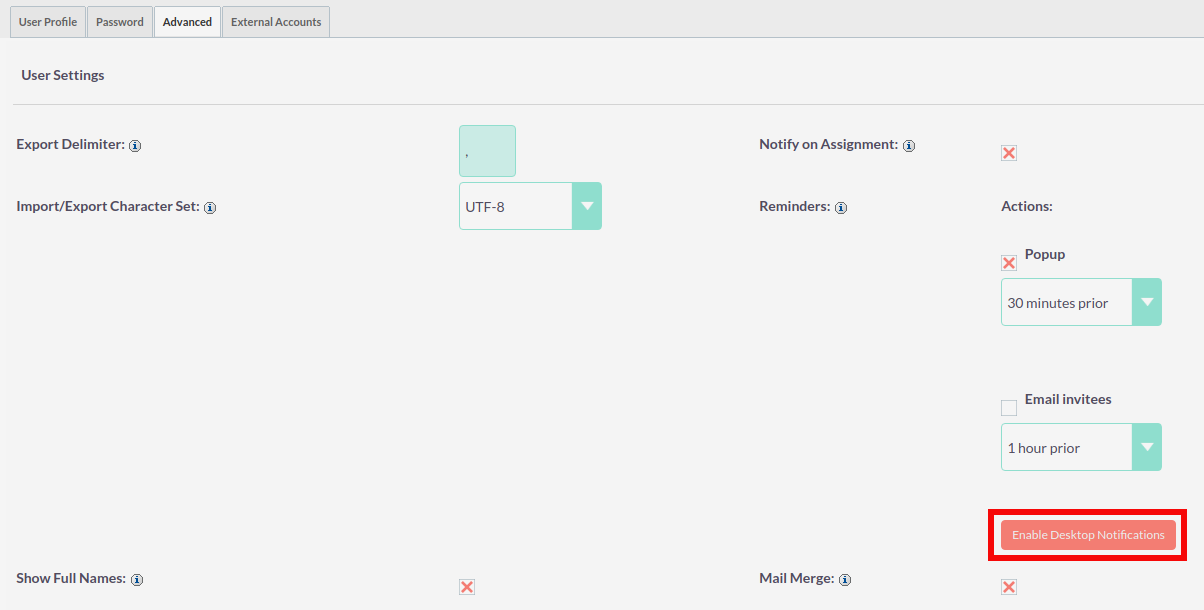
Desktop notifications must be enabled separately for each browser and computer you use. When prompted by the browser, choose to allow notifications for your SuiteCRM site.
Once enabled, notifications for missed or unacknowledged alerts accumulate and are shown as a count on the navigation bar. See Alerts for details on managing these notifications.
Layout Options
The SuiteP theme offers four colourways: Dawn, Day, Night, and Dusk. Select your preferred colourway from the Layout Options tab in your user profile.
-
Open your user profile and select Edit from the Actions menu.
-
Click the Layout Options tab.
-
Select a colourway from the Style drop-down. The default is Dawn.
-
Click SAVE.
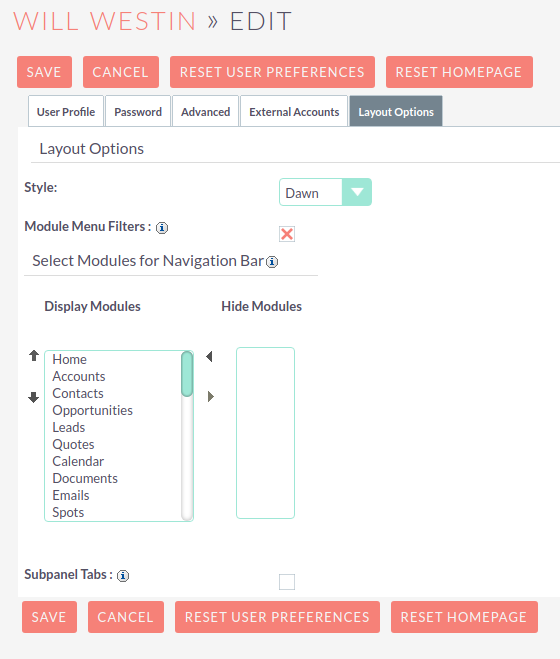
The colourway is per-user and does not affect other users.
Resetting a Users Preferences
You can reset your user preferences to the system default by clicking the Reset User Preferences button at the bottom of the page.

Clicking the button will prompt you to ensure you wish to reset your user preferences, with the following message: "Are you sure you want reset all of your user preferences?"
This will also log you out of the application. You can then click 'OK' or 'Cancel' to action appropriately. If you select 'OK' you will be logged out and will need to re-login to SuiteCRM application.
Resetting a Users home page
You can reset your home page to the system default by clicking the Reset home page button at the bottom of the page. This will reset both dashlet and dashboard preferences/layouts to the system default.

Clicking the button will prompt you to ensure you wish to reset your home page, with the following message: "Are you sure you want reset your home page?". You can then click 'OK' or 'Cancel' to action appropriately.