# Dump
mysqldump -u <user> -p <database_name> > suitecrm_$(date +%Y%m%d).sql

# Restore on new server
mysql -u <user> -p <database_name> < suitecrm_$(date +%Y%m%d).sqlLarge or Complex Upgrades
This guide is for administrators managing upgrades across large databases, heavily customised instances, or significant version gaps. It covers the planning, execution, and post-upgrade care needed to reduce risk and protect continuity.
For a standard upgrade on a small or lightly customised instance, the Upgrade Wizard or CLI Upgrade guides are sufficient on their own.
Planning
Is your current system healthy?
Resolve known issues before upgrading. Starting from an unhealthy state makes it harder to distinguish pre-existing problems from upgrade-related ones.
-
Check for oversized tables. Some tables accumulate large volumes of soft-deleted records over time. Review your database for tables with unexpectedly high row counts and consider pruning before upgrading.
-
Review your logs. Check
suitecrm.logfor recurring errors. Understanding your baseline error state means you can more clearly identify anything new that appears after the upgrade.
Define your scope
When one part of your stack is upgraded, others often need to move with it. Take time to think through the full scope before starting:
-
Choose your target SuiteCRM version. Check the Compatibility Matrix to confirm your PHP, database, and web server are supported.
-
Ensure your PHP version has sufficient remaining support life — check php.net/supported-versions.
-
Decide whether to take this opportunity to improve your infrastructure: moving to a newer server, separating the database tier, adopting containers or virtual machines, or working from a
gitrepository for better change management.
Audit your customisations
Your objective is to upgrade without breaking functionality your users depend on. Start by listing everything that is not part of the core product:
-
Add-ons and extensions — are they compatible with the target version?
-
Custom themes or logo/branding changes
-
Studio-customised layouts
-
Logic hooks and workflows
-
Any code changes made directly to core files rather than through the
/customdirectory — these will be overwritten and must be re-applied after upgrading in an upgrade-safe way
Align with your organisation
A CRM upgrade affects day-to-day processes across the business. Make sure the following stakeholders are informed and involved before you begin:
-
Technical staff responsible for the upgrade and testing
-
Managers and team leads who need to plan around any downtime
-
End users who should know what is changing and when
-
Anyone outside the organisation who may notice an impact
Treat it as a project
A large upgrade benefits from formal project management:
-
Identify risks and define mitigation steps
-
Set clear timelines and assign responsibilities
-
Build in a testing phase and, if possible, a phased rollout
-
Plan the cut-over carefully — the moment the old system is taken down and the new one goes live is the highest-risk point in the process
Performing the upgrade
Upgrade strategy
You will need a second server or environment to perform and test the upgrade before it goes to production. Two common strategies exist:
Migrate-to-Upgrade Strategy Bring up a new server, migrate your data and files to it, then upgrade on the new server. When satisfied, switch traffic to the new server.
Test-and-Upgrade Strategy Clone your production server and upgrade the clone. Once tested, upgrade production directly (with a maintenance window).
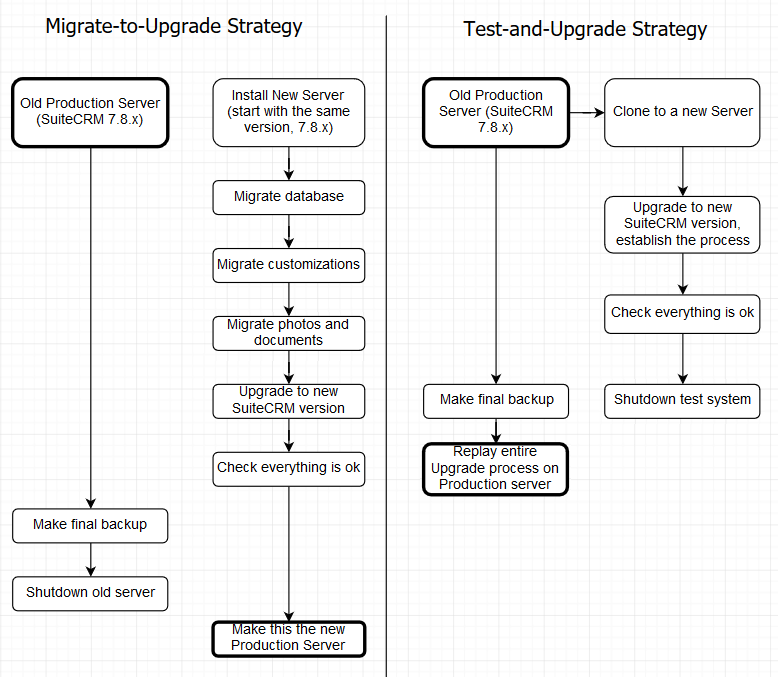
Virtualisation or containerisation provides a significant advantage here — snapshots let you roll back to a known-good state at any point during the process.
Database migration
If you are moving to a new server, a full SQL dump is typically sufficient:
Never restore a database from one SuiteCRM version onto a server running a different SuiteCRM version before upgrading the code to match. The schema mismatch can cause data integrity issues that may not become apparent until much later.
Transferring files
For an exact clone, copy the entire SuiteCRM directory.
For a targeted migration of data and customisations only, transfer:
-
uploads/— user-uploaded files, photos, and attachments -
custom/— your customisations -
Any custom modules from the
modules/directory -
Any custom themes from the
themes/directory -
config.phpandconfig_override.php
Testing the upgraded instance
Before going to production, focus testing on:
-
Everything you customised — logic hooks, layouts, workflows, add-ons
-
Email configuration and inbound/outbound mail
-
Any integrations with external systems
-
All platforms your users work from: desktop, tablet, and mobile
Server name or URL changes
If the upgrade involved moving to a server with a different hostname or URL:
-
Update
site_urlandhost_nameinconfig.php -
Update any Workflow actions that include hard-coded URLs
-
Update any links in your website or external systems pointing to the CRM
-
Review
.htaccessfiles for hard-coded paths
Post-upgrade care
Once the new system is live:
-
Navigate to Admin › Repair and run Rebuild Relationships and Rebuild Extensions.
-
Monitor logs for new errors in the first few days.
-
Aim to stay close to the current release going forward — smaller, more frequent upgrades are significantly lower risk than large version jumps.
-
If you encounter issues, the Community Forums are a good first resource. If you confirm a bug, raise it on the SuiteCRM GitHub repository.