Relationships and Subpanels
Below the main record detail, you will find the Relationships section. This section displays all other modules that are linked to the record you are currently viewing, presented as a grid of tiles. Each tile shows the module name, its icon, and a count of how many related records exist, giving you an at-a-glance summary of all associated data. The modules shown will vary depending on the record type — for example, a Contact record may display tiles for Activities, History, Documents, Cases, and Security Groups, as illustrated in the screenshot below.
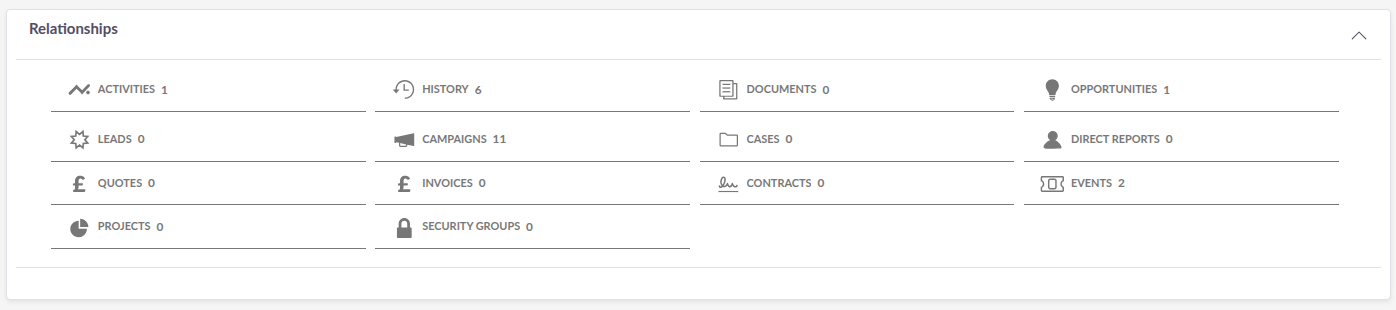
Clicking on a tile name, for example Activities, will open that sub-panel directly below the relationships grid, displaying the related records in a list format. The sub-panel shows key fields for each related record, such as subject, status, contact, due date, and assigned user. From here you can click on any hyperlinked value to navigate to that record. Each sub-panel also has its own Actions drop-down in the top-right corner, allowing you to create new related records or perform other actions relevant to that module. To close an open sub-panel, click the X icon to the left of the sub-panel header.

Using Subpanels
Each sub-panel within the Relationships section provides its own set of actions and functionality:
-
Creating a related record: Within an expanded sub-panel, click Create to create a new record in that module that will be automatically linked to the current record.
-
Editing a related record: Click the Pencil icon to edit the related record.
-
Linking an existing record: Click Link / Unlink within an expanded sub-panel to search for and link (or unlink) an existing record from that module to the current record.
-
Removing a relationship: Within an expanded sub-panel, you can remove the link between the current record and a related record. Note that this removes the relationship only and does not delete the related record itself.
How Relationships Work
Relationships in SuiteCRM define how records across different modules are connected to one another. For example, a Contact can be related to an Account, a Note, a Meeting, and a series of historical emails. These relationships allow you to build a complete picture of your interactions and data around a single record.
Relationships can be created in two ways:
-
Via the sub-panel: Within any expanded sub-panel, you can use the Create button to create a new related record that will be automatically linked to the current record, or the Select button to search for and link an existing record from that module.
-
During data entry: When creating or editing a record, relate fields within the form allow you to link records from other modules directly. For example, when creating a Contact you can specify the Account it belongs to, establishing the relationship at the point of data entry.
The sub-panels available on a record and the relationships configured between modules can be managed by a system administrator. If you feel a relationship between two modules is missing, speak to your system administrator.
It is worth noting that relate fields and sub-panels are two sides of the same relationship. When you populate a relate field on a record, for example linking a Contact to an Account during data entry, the relationship is created immediately on save. The Contact will then appear in the Contacts sub-panel on the Account record, and the Account will be shown in the Account Name field on the Contact record. This means that regardless of which method is used to create a relationship, the outcome is the same: both records will reflect the connection between them.
Subpanel Filtering
Some sub-panels include a Filter button that allows you to search and filter records within that specific sub-panel without affecting the rest of the page. If a sub-panel on your instance does not have a filter button and you need one, speak to your system administrator or developer — see Subpanel Filtering for configuration details.
Relate Fields
Relate fields are a special type of field found on many record creation and edit forms throughout SuiteCRM. They allow you to link one record to another record in a different module and are visually distinct from standard text fields. They have a small selector icon (arrow) to the right of the field, which opens a search pop-up allowing you to find and select the record you wish to link.

Using a Relate Field
To populate a relate field:
-
Click the selector icon to the right of the relate field. A search pop-up will appear.
-
Use the search fields in the pop-up to find the record you wish to link.
-
Click on the record name to select it. The pop-up will close and the selected record’s name will be populated in the relate field.
-
If you wish to clear a relate field that has already been populated, click the X icon to the right to remove the linked record.
Alternatively, if you know the name of the record you wish to link, you can begin typing it directly into the relate field. SuiteCRM will suggest matching records as you type, allowing you to select the correct one without opening the full search pop-up.