Logging In
This section covers everything you need to know to access SuiteCRM for the first time. It walks you through the login process and the initial setup wizard that guides you through configuring your personal preferences, such as your date format, time zone, and currency. Taking a few minutes to complete this setup when you first log in will ensure that SuiteCRM is tailored to your needs from the outset.
Accessing SuiteCRM
SuiteCRM is a web-based application and can be accessed using any modern web browser. See the full list of supported browsers on the Compatibility Matrix page.
Logging into SuiteCRM
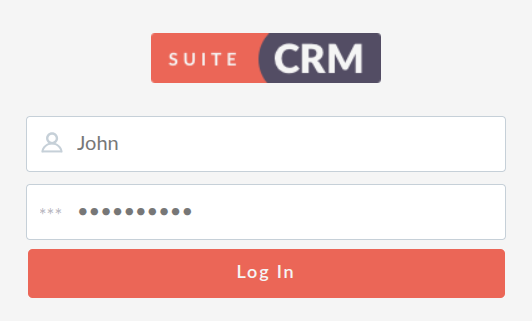
SuiteCRM allows you to log in using your username and password. If you have forgotten your password, click the Forgot Password link on the login page to request a reset email. If the Forgot Password link is not available, and you are unable to access SuiteCRM, please contact your system administrator.
The User Wizard
The User Wizard guides you through the configuration options available to you when you first log in. This allows you to select many formats for data that will be displayed in SuiteCRM, and these are specific to your user account. You can also set or change them later in your User Profile.
Welcome to SuiteCRM
The first step you will see is a simple welcome page that displays once you have logged in. Click Next on this page to progress to configuring your user preferences.

Your Information
On this screen you are able to provide information about yourself. Fields marked with a red asterisk (*) are required fields, and as such need to be filled in with valid data before you can progress.
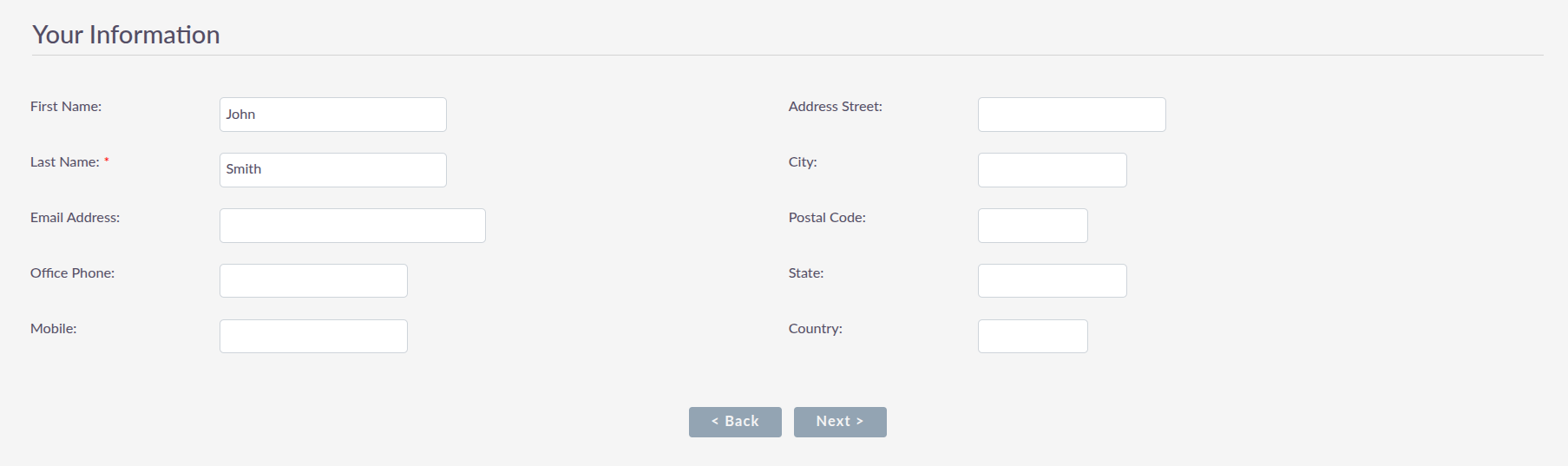
Once you have filled in all the information, click Next to progress to the next step.
Your Locale
On this screen you are able to specify your preferred locale settings:
-
Time Zone: Select the time zone you wish to use within SuiteCRM.
-
Date & Time Format: Select the date and time format you wish to be displayed for all date and time fields within SuiteCRM. There are many different format options to select from, all of which are specific to your user account.
-
Currency: Select the currency you wish to be displayed for all currency fields within SuiteCRM. The currency options are populated from the options added by your system administrator. If a currency you require is not listed, please contact your system administrator.
-
Name Format: Select the name format you wish to be displayed for all name fields within SuiteCRM.
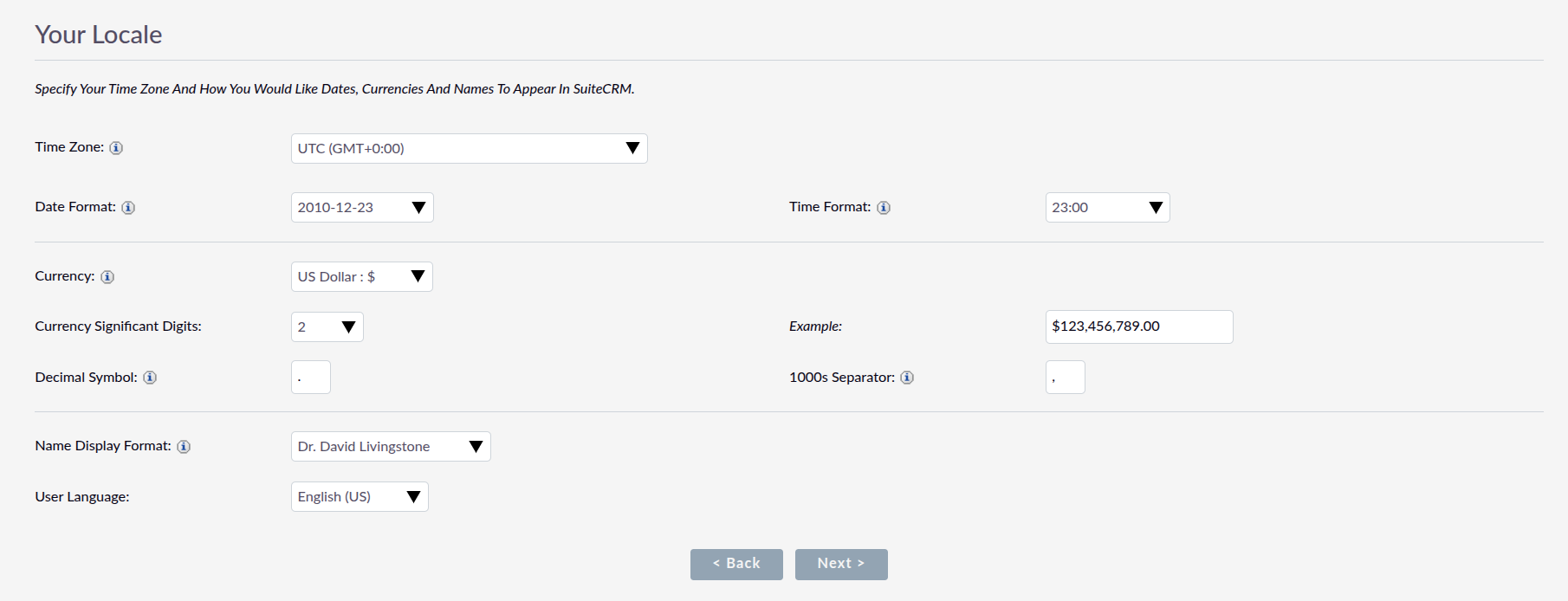
Once you have specified all of your locale preferences, click Next to progress to the final step.
Final Step
The final step of the User Wizard provides you with useful links for learning more and obtaining support from the SuiteCRM website. There is a Back button that you can use to amend any settings from previous steps.
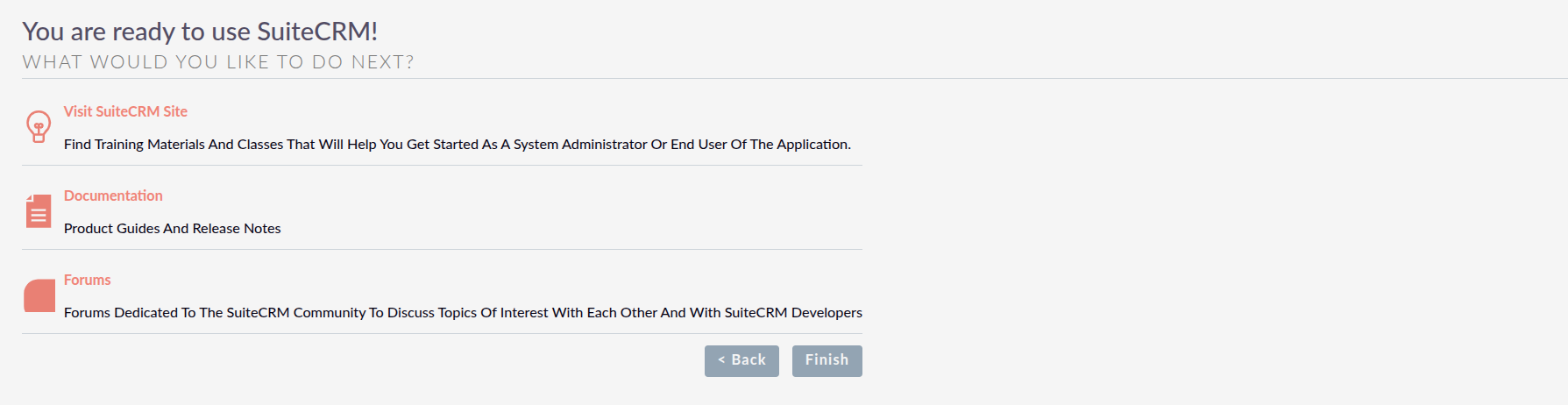
Clicking Finish will complete the User Wizard and present you with the Homepage screen.