Leads
In SuiteCRM a Lead is an unqualified contact usually generated from some form of marketing related event, for example it could be a person that has filled out a form on your website or someone that you met at a trade show and you are not sure yet if they have buying authority. Once a Lead is qualified and converted then it can be split into three parts; a Contact once you have established 'Who' it is, an Account when you know 'Where' they work and an Opportunity once it is known 'What' they might buy.
Key Fields
-
Lead Source: records how the lead was acquired: Web Site, Trade Show, Word of Mouth, Cold Call, Campaign and so on. Important for measuring the effectiveness of marketing channels.
-
Status: tracks where the lead is in the qualification process: New, Assigned, In Process, Converted, Recycled or Dead.
-
Account Name: the company the lead works for. This is a plain text field on a Lead (unlike on a Contact, where it is a relationship to an Account record). It becomes a full Account relationship on conversion.
-
Title / Department: the lead’s role and team within their organisation.
-
Referred By: records who referred the lead to you.
-
Do Not Call / Email Opt Out: compliance flags that carry over when the lead is converted to a Contact.
-
Campaign: links the lead to the campaign that generated it, feeding campaign ROI reporting.
-
Website: the company website of the lead. Carried over to the Account when the lead is converted.
Relationships
From a Lead record you can view and manage related records via sub-panels:
-
Activities: Calls, Meetings, Tasks and Emails logged against the lead.
-
History: archived emails and completed activities.
-
Documents: files attached to the lead.
-
Campaigns: the campaign the lead originated from.
SuiteCRM includes a built-in Maps feature. A map panel showing the Lead’s address is available on Lead records. See Maps for details.
For information on working with sub-panels and relationships, see Relationships & Subpanels.
For standard record operations including searching, editing, duplicating, merging and importing, see Record Management.
Converting a Lead
Once enough information is gathered about a Lead, then the Lead can be progressed to the next Sales stage and the Lead can be converted into a Contact, Account and Opportunity. The way in which a Lead is converted depends on how the System Administrator has set up SuiteCRM. To convert a Lead with the default SuiteCRM setup you have to click on an individual Lead record to access the Detail View of the Lead and click on the arrow next to the Other button, then click on 'Convert Lead' from the drop-down menu shown in the image below:
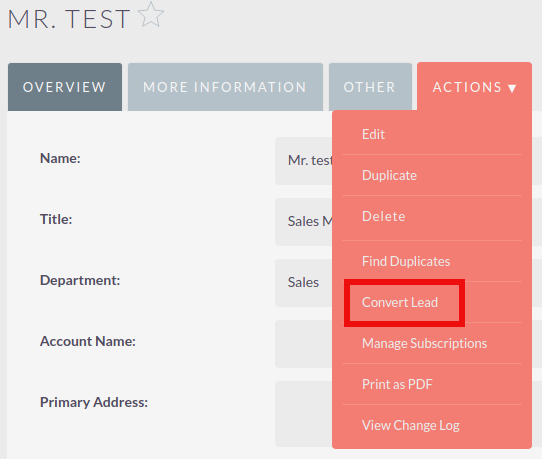
Once you have clicked on 'Convert Lead' button then you will be taken to the Convert Lead page.
Convert Lead to Contact
On this page you will be able to Create or Select Contact:
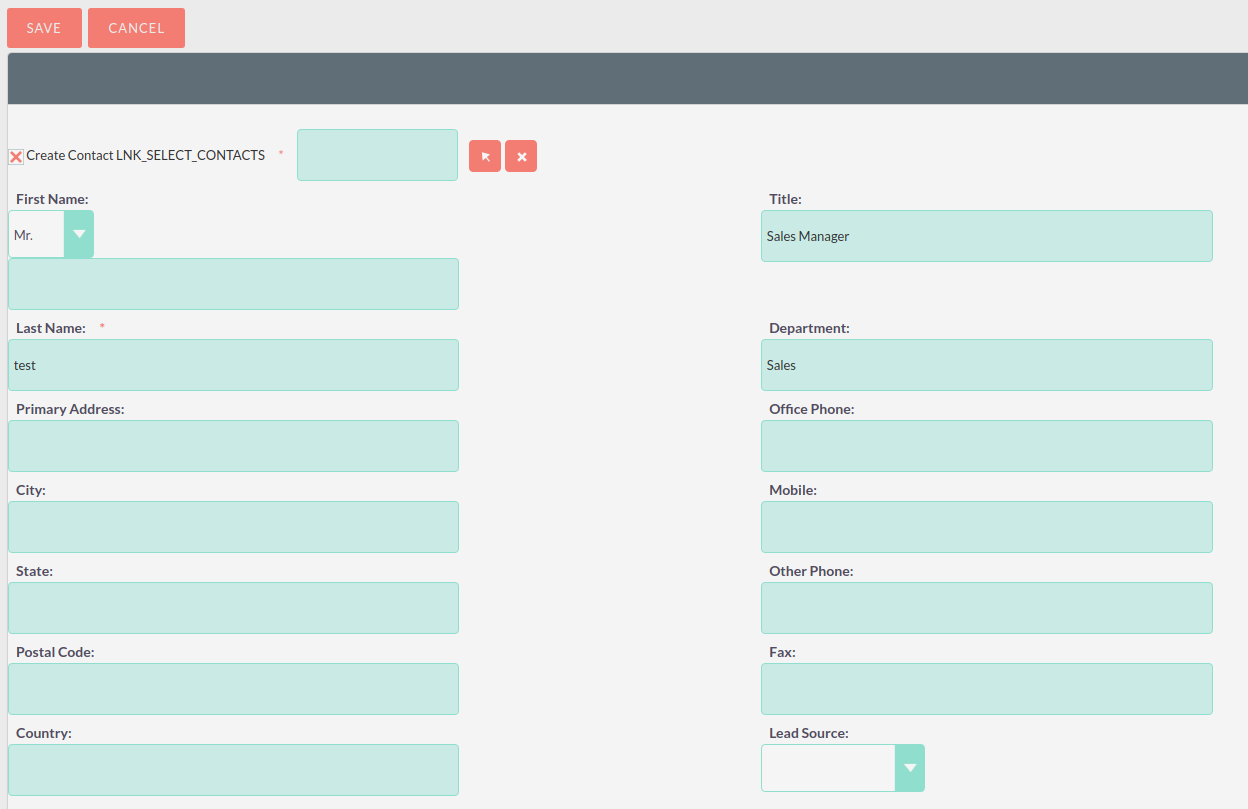
By deselecting the checkbox next to 'Create Contact' you will be able to associate the Lead to an existing Contact. However, in most cases when converting a Lead there will be no existing Contact. Make sure the Create Contact checkbox is selected. Some of the fields will automatically be populated using the Lead information. Fill out the remaining relevant fields and move to the next Stage below:
Convert Lead to Account
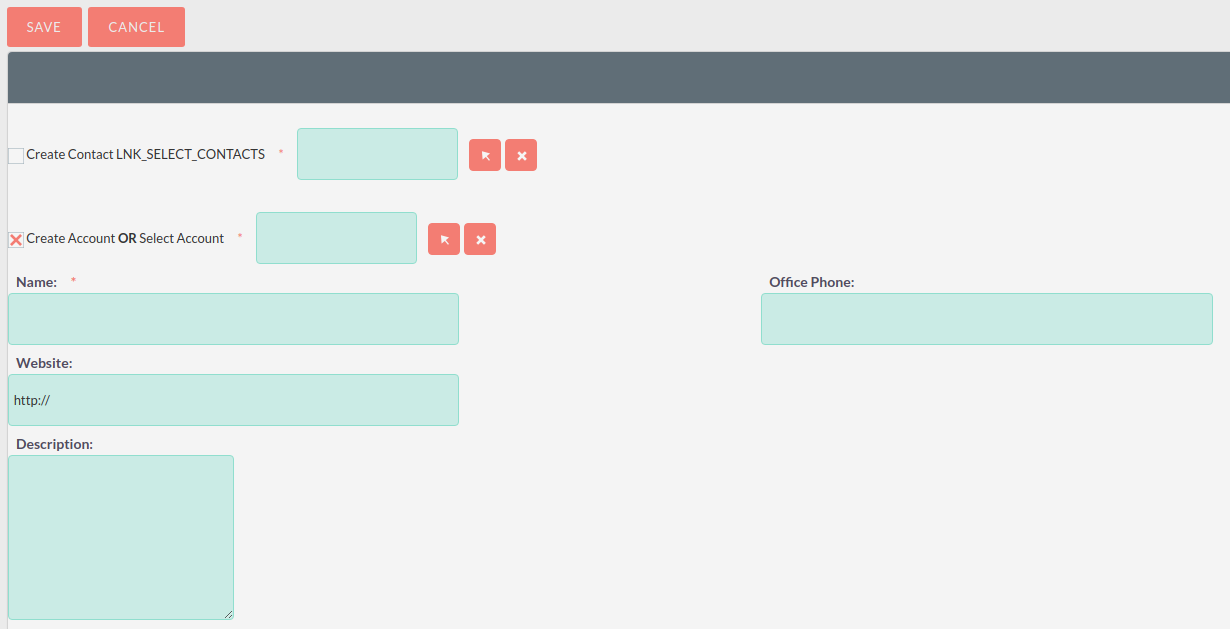
To create an Account from a converted Lead you will follow the same process as with a Contact, some information will populate from the Lead automatically, just complete the rest.
Convert Lead to Opportunity
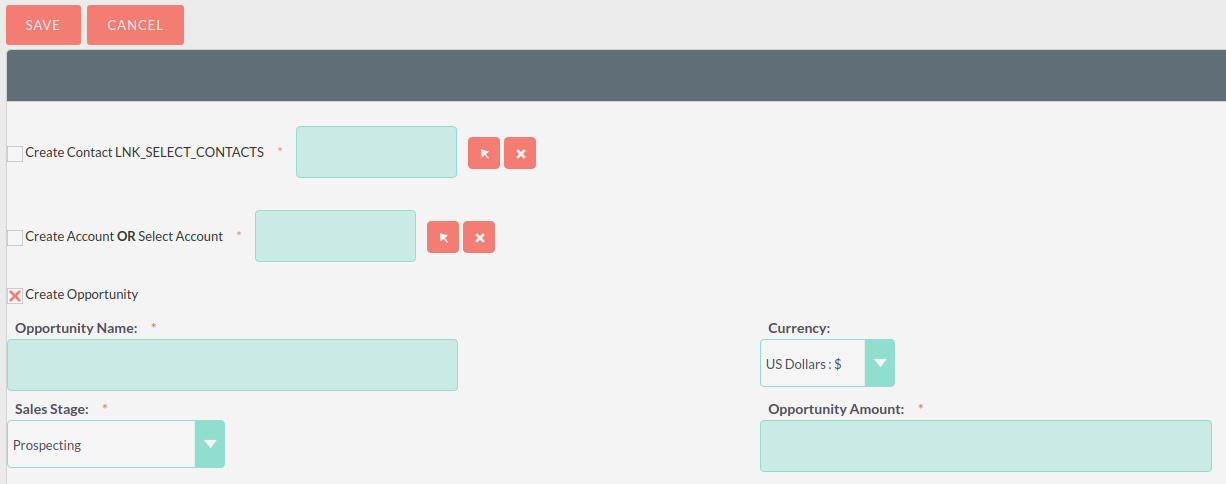
To create an Opportunity from a converted Lead you will follow the same process as with a Contact, some information will populate from the Lead automatically, just complete the rest.
Other Lead Conversion Options
Other records can be created when converting a Lead in the same way as Contacts/Accounts and Opportunities.
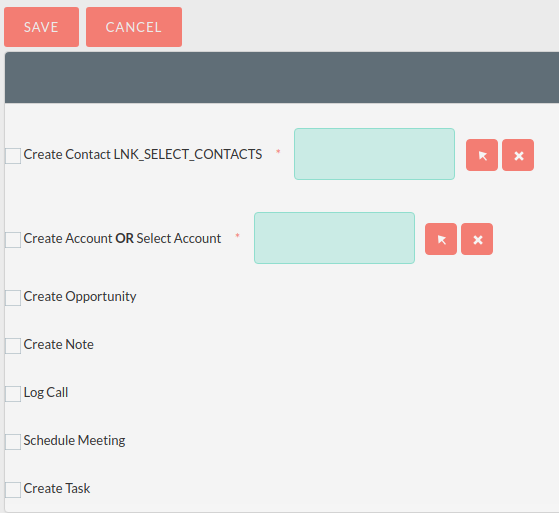
After you have completed the relevant sections click Save to confirm the changes.
Duplicate Record Check
When converting a Lead SuiteCRM will automatically check for any duplicate records and will return a warning if a matching record is found.
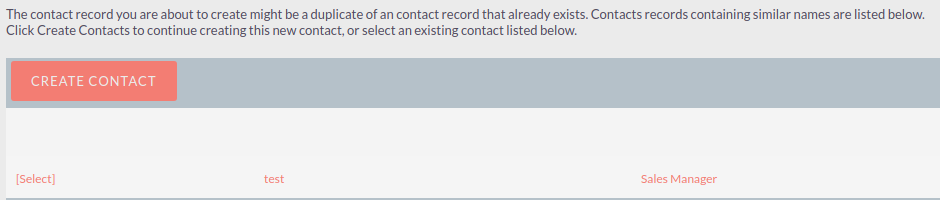
If you find that the duplicate warning is not valid and you still wish to create a new record, then click Create. Otherwise if you decide that the warning is correct and the record does already exist in the CRM then you should the 'select' button.