Scheduled Reports
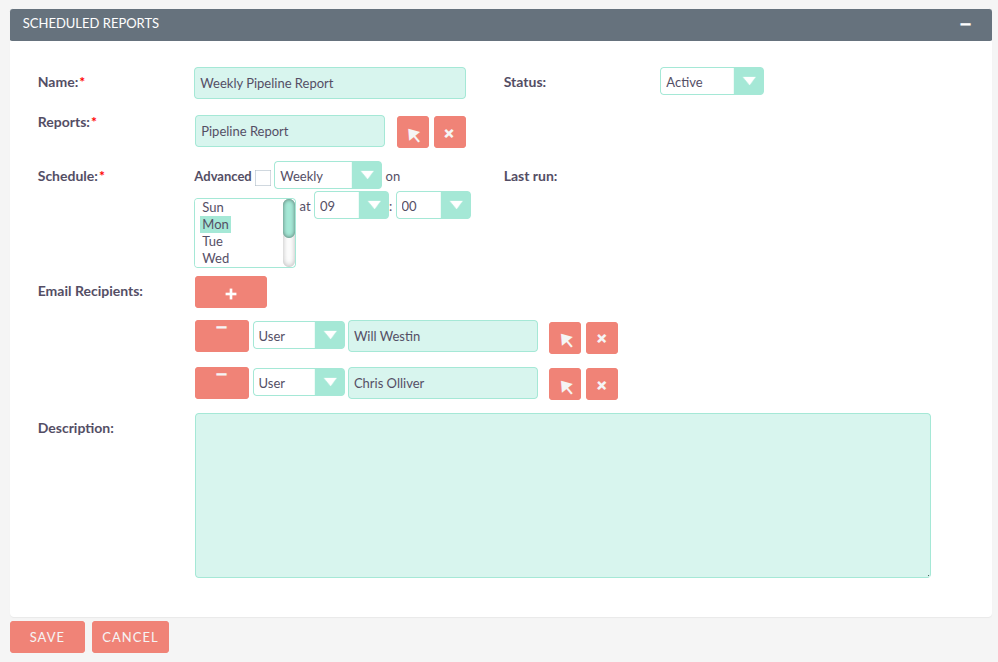
Scheduled Reports run a saved report automatically on a set schedule and email the results to one or more recipients. This is useful for delivering regular updates — such as a daily pipeline summary or a weekly activity report — without anyone needing to run them manually.
Creating a Scheduled Report
There are two ways to create a Scheduled Report:
-
From the Scheduled Reports module, click Create Scheduled Report.
-
From a Report’s Detail View, scroll to the Scheduled Reports subpanel and click Create. The report field is pre-filled.
Fields
Name |
A descriptive name for the scheduled report, e.g. "Weekly Pipeline Report for Managers". |
Status |
Active or Inactive. Only Active scheduled reports run automatically. Set to Inactive to pause delivery without deleting the record. |
Report |
The report to run and send. Required. |
Schedule |
When to run the report. See Schedule Options. |
Description |
Optional notes. |
Schedule Options
Select Daily, Weekly, or Monthly for a simple recurring schedule.
Select Advanced to enter a custom cron expression. The five fields represent minute, hour, day of month, month, and day of week, following standard Unix cron syntax. For example, 0 8 * * 1 runs every Monday at 08:00. This option is best suited for administrators or users familiar with cron notation.
Email Recipients
The Email Recipients section determines who receives the report results by email each time the scheduled report runs. Add recipients one at a time by selecting a type:
Enter any email address directly. |
|
User |
Select a specific SuiteCRM user. The report is sent to that user’s email address. |
Users |
Send to a group of users: * ALL Users: all active users in the system * ALL Users in Role: all users assigned to a selected ACL Role * ALL Users in Security Group: all users in a selected Security Group |
Multiple recipients of different types can be added to the same scheduled report.
Managing Scheduled Reports
-
The Last Run field shows the date and time the scheduled report last executed. It appears in the Scheduled Reports subpanel on the Report Detail View and on the Scheduled Report record itself.
-
To pause delivery temporarily, set the Status to Inactive.
-
To delete a scheduled report, open the record and click Delete. This does not affect the underlying report.