Calls & Meetings
Calls
The Calls module allows you to schedule and log a record of inbound and outbound calls that you are a participant in. Calls can be related to Accounts, Contacts, Leads, Opportunities and Cases, and invitees can be notified by email.
Key Fields
-
Direction: whether the call is Inbound or Outbound.
-
Status: planned (upcoming), Held (completed), or Not Held (cancelled).
-
Date & Time / Duration: when the call starts and how long it runs (hours and minutes).
-
Related To: links the call to a parent record such as an Account, Contact, Lead, Opportunity or Case. This determines which record’s History sub-panel the call appears in.
-
Reminders: popup and email reminders can be set to alert invitees before the call starts.
-
Repeat Type: calls can be set to recur Daily, Weekly, Monthly or Yearly, with configurable interval, day-of-week, and end conditions (repeat until date or fixed number of occurrences).
Relationships
From a Call record you can view and manage:
-
Invitees: users, Contacts and Leads added as participants. Invitees can be emailed directly from the record.
-
Related record: the Account, Contact, Opportunity, Case or other record the call is logged against.
For information on working with sub-panels and relationships, see Relationships & Subpanels.
For standard record operations including searching, editing, duplicating and closing, see Record Management.
Rescheduling a Call
You can reschedule a Call that has a Direction of Outbound and a Status of Planned using the Reschedule button on the Call’s Detail View.
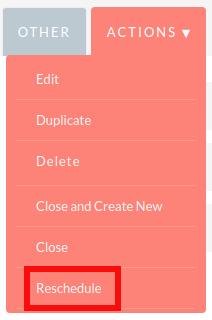
Clicking Reschedule opens a popup where you can set the new date and time, and optionally select a reason for rescheduling from the dropdown list.

Click Save to confirm. The call is updated to the new date and time, and a reschedule entry is recorded. You can view the full reschedule history on the Reschedule tab of the Call’s Detail View.
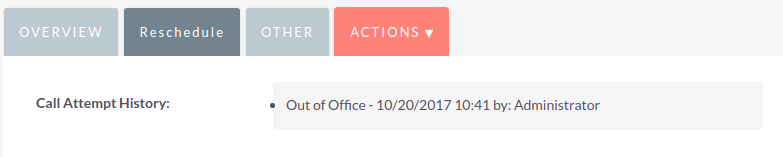
The reasons available in the Reschedule popup can be customised by a system administrator using the dropdown editor (dropdown list: call_reschedule_dom).
Sending Call Email Invitations
When scheduling a Call, you can send email invitations to the invitees.
In the Add Invitees section:
-
Search for the invitees you want to add to the Call.
-
Select the invitees from the search results and click the Add button.
-
Once you have added all the invitees and all the info for the call is filled, click Save & Send Invitations.
This will save the Call record and send email invitations to all the invitees added to the Call.
RSVP types for Call invitations
RSVP configuration
Two email RSVP types are available for invitations:
-
ICS RSVP
-
Link RSVP
The RSVP type can be configured in the config.php or config_override.php file by setting the email_calendar_invite_type configuration variable to either rsvp_ics or rsvp_links.
ICS RSVP
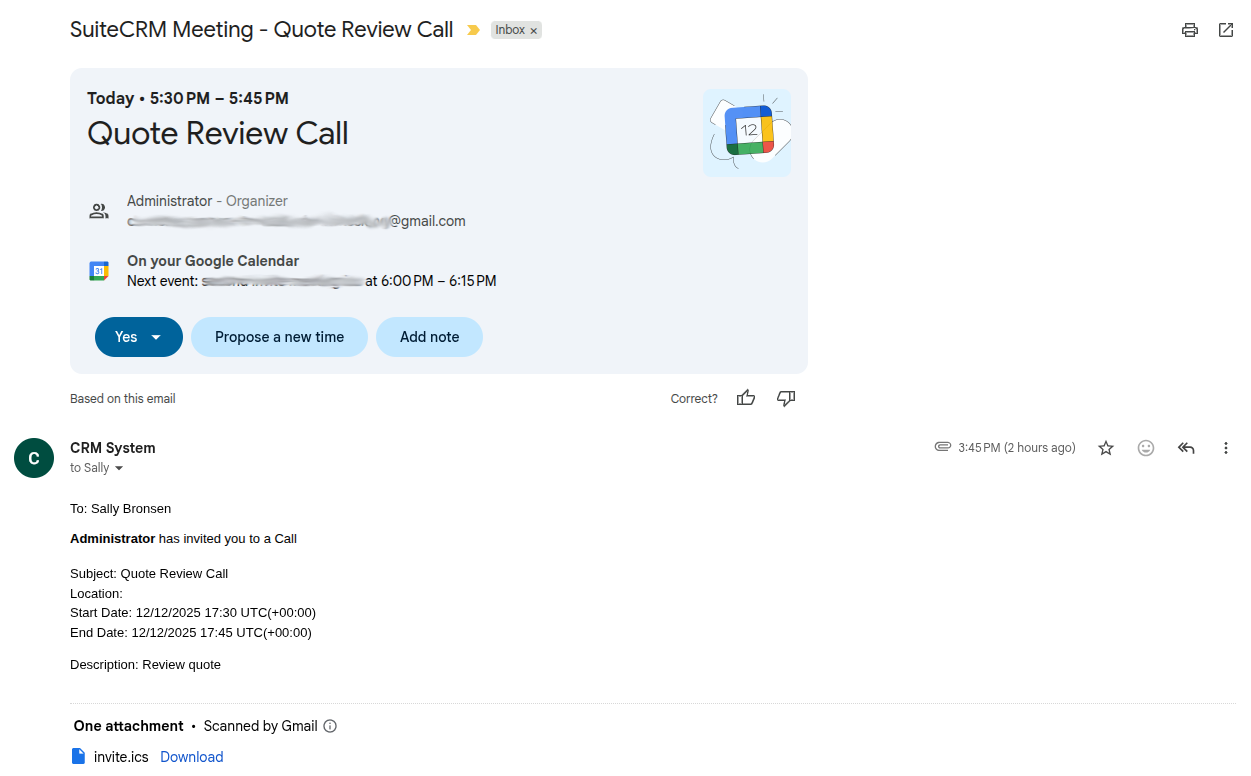
When the ICS RSVP type is selected, the email invitation will contain the ICS calendar file that the invitees can use to add the Call to their own calendar application. Upon receiving the invitation, invitees can accept or decline the Call. However, accepting or declining through the RSVP (see example below) will not update the acceptance status in the Call record in SuiteCRM.
Link RSVP
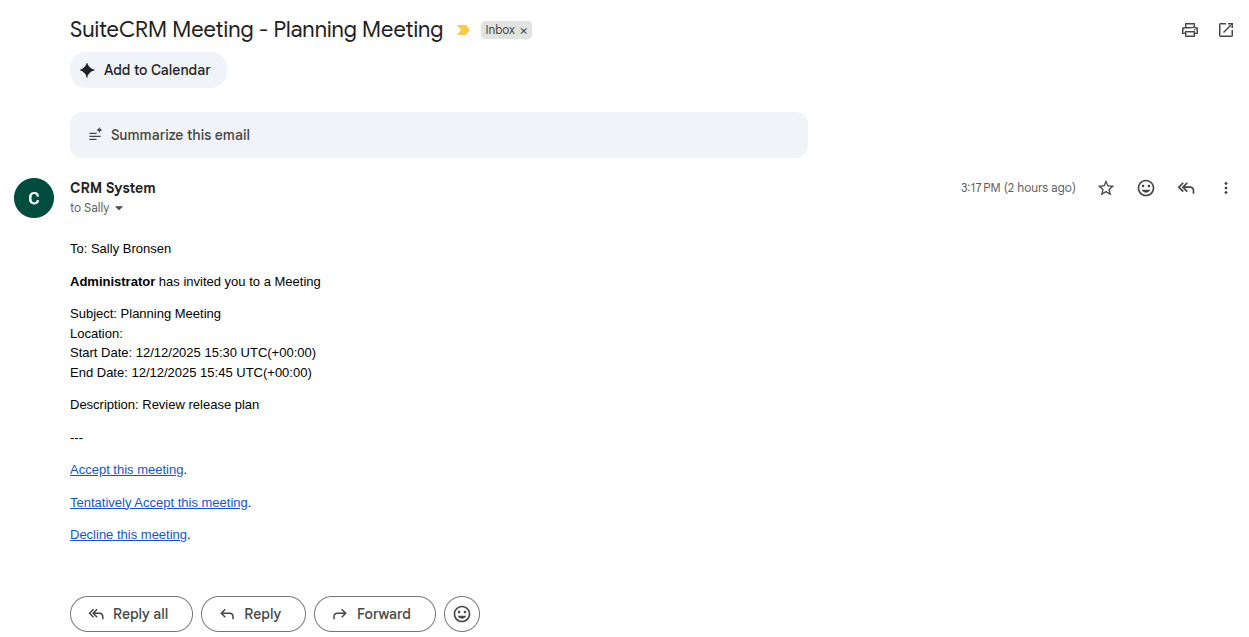
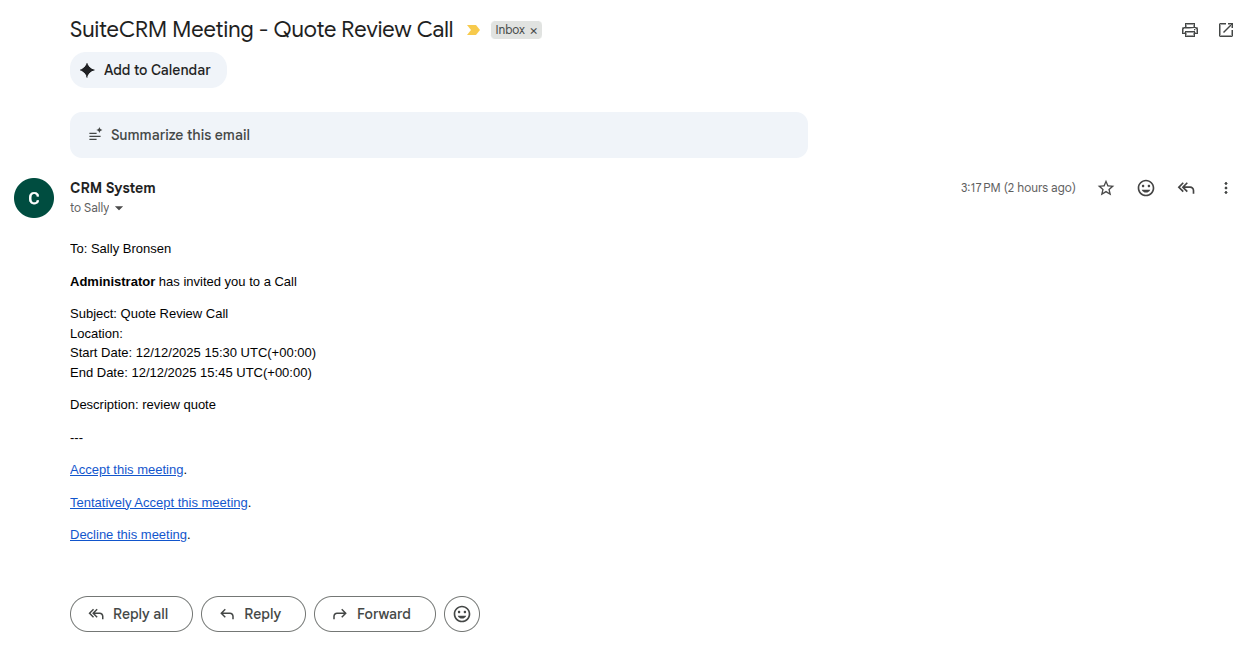
When the Link RSVP type is selected, the email invitation will contain links that the invitees can use to accept or decline the Call. Upon receiving the invitation, invitees can accept or decline by clicking on the RSVP links (see example below). These links update the acceptance status directly in the Call record in SuiteCRM.
Meetings
The Meetings module allows you to create a record of any meeting you have been involved in. The meeting scheduler allows you to invite attendees, send email invitations, set reminders, schedule recurring meetings, and relate meetings to Accounts, Contacts, Projects and many other modules.
Key Fields
-
Status: planned (upcoming), Held (completed), or Not Held (cancelled).
-
Location: the venue or address where the meeting takes place.
-
Date & Time / Duration: when the meeting starts and how long it runs.
-
Related To: links the meeting to a parent record. This determines which record’s History sub-panel the meeting appears in.
-
Type: identifies whether this is a standard meeting or one run through an external conferencing tool (WebEx, GoToMeeting etc.).
-
Password / Join URL: for virtual meetings, these store the access credentials and joining link for attendees.
-
Reminders: popup and email reminders can be set to alert invitees before the meeting starts.
-
Repeat Type: meetings can be set to recur Daily, Weekly, Monthly or Yearly, with configurable interval, day-of-week, and end conditions.
Relationships
From a Meeting record you can view and manage:
-
Invitees: users, Contacts and Leads added as participants.
-
Related record: the Account, Contact, Opportunity, Case or other record the meeting is logged against.
SuiteCRM includes a built-in Maps feature. A map panel showing the Location field is available on Meeting records. See Maps for details.
For information on working with sub-panels and relationships, see Relationships & Subpanels.
For standard record operations including searching, editing, duplicating and closing, see Record Management.
To reschedule a meeting, edit its Start Date & Time field. You can double-click to inline-edit this directly from the Detail View.
Sending Meeting Email Invitations
When scheduling a Meeting, you can send email invitations to the invitees.
In the Add Invitees section:
-
Search for the invitees you want to add to the Meeting.
-
Select the invitees from the search results and click the Add button.
-
Once you have added all the invitees and all the info for the meeting is filled, click Save & Send Invitations.
This will save the Meeting record and send email invitations to all the invitees added to the Meeting.
RSVP types for Meeting invitations
RSVP configuration
Two email RSVP types are available for invitations:
-
ICS RSVP
-
Link RSVP
The RSVP type can be configured in the config.php or config_override.php file by setting the email_calendar_invite_type configuration variable to either rsvp_ics or rsvp_links.
ICS RSVP
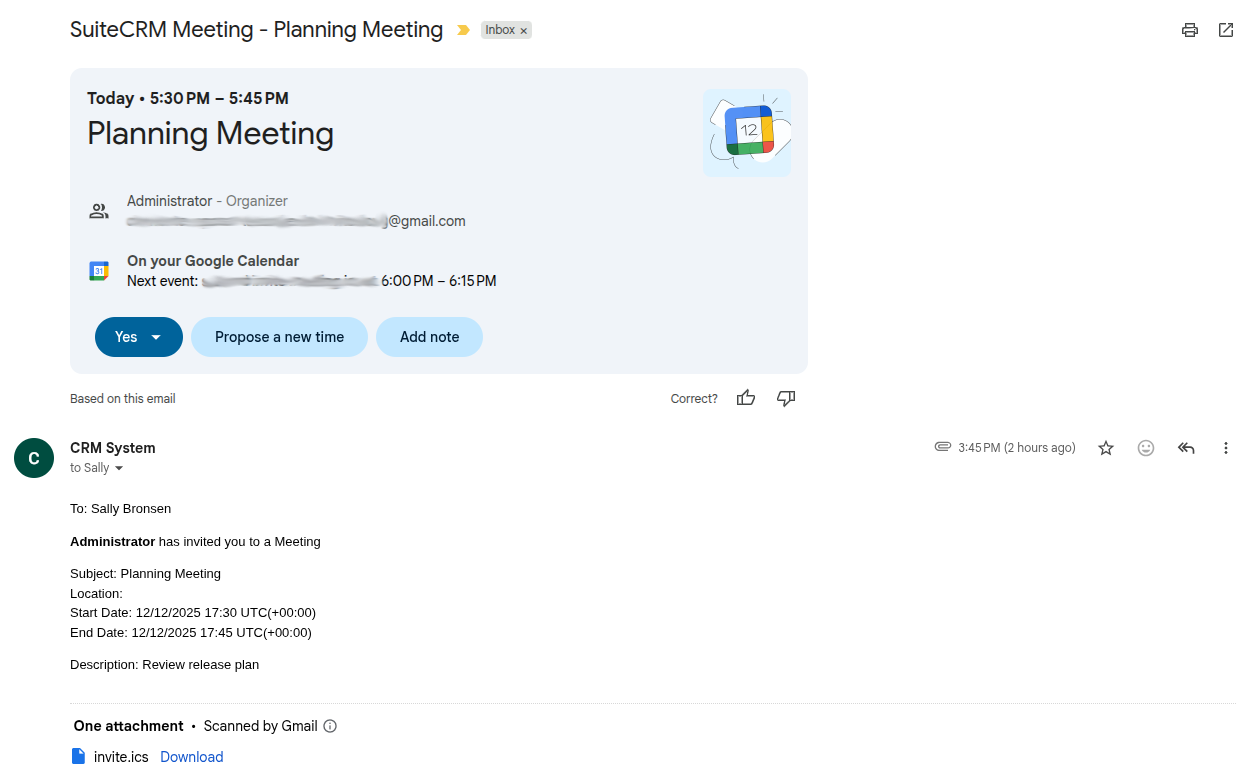
When the ICS RSVP type is selected, the email invitation will contain the ICS calendar file that the invitees can use to add the Meeting to their own calendar application. Upon receiving the invitation, invitees can accept or decline. However, accepting or declining through the RSVP (see example below) will not update the acceptance status in the Meeting record in SuiteCRM.
Link RSVP
When the Link RSVP type is selected, the email invitation will contain links that the invitees can use to accept or decline the Meeting. Upon receiving the invitation, invitees can accept or decline by clicking on the RSVP links (see example below). These links update the acceptance status directly in the Meeting record in SuiteCRM.