Two-Factor Authentication
Two-Factor Authentication (2FA) adds an extra layer of security to your account. Once enabled, you will be required to enter a one-time code sent to your email address each time you log in to SuiteCRM, in addition to your username and password.
Two-Factor Authentication is enabled on a per-user basis. If you cannot see the option in your profile, contact your system administrator.
Enabling Two-Factor Authentication
-
Open your user profile by clicking your name in the top-right navigation menu and selecting Profile.
-
Select Edit from the Actions menu.
-
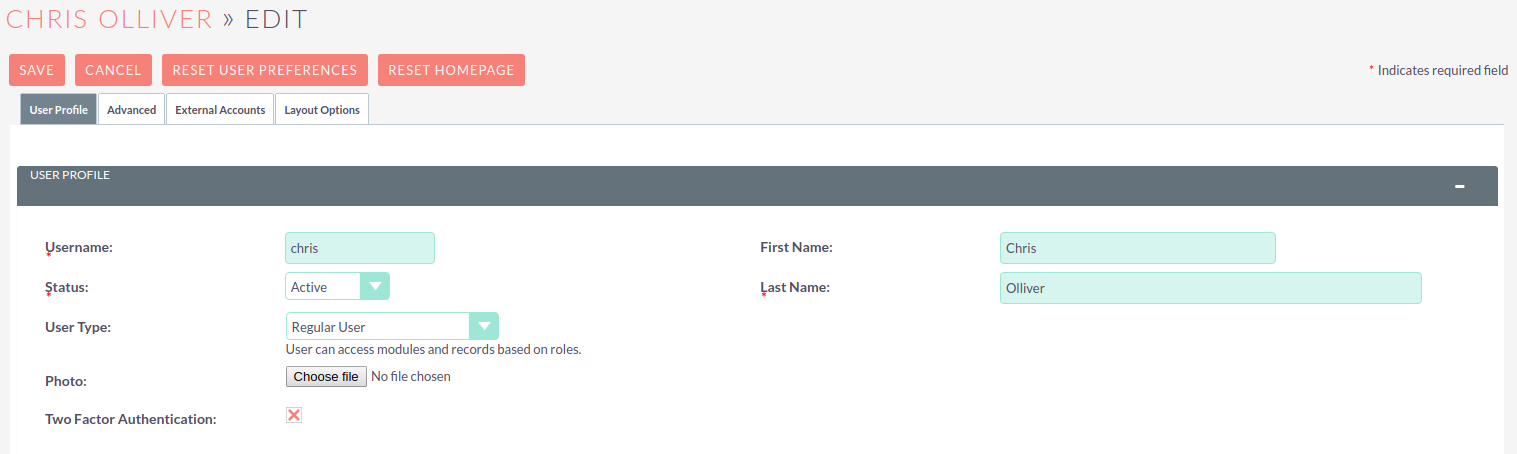
Check the Two Factor Authentication checkbox.
-
Click SAVE.
Logging In with Two-Factor Authentication
After enabling 2FA, each time you log in you will be prompted to enter a verification code after entering your username and password.
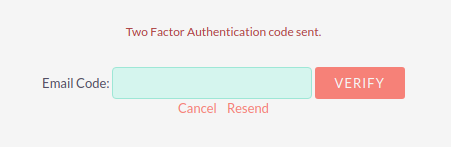
The code will be sent to your account’s primary email address. Enter the code and click VERIFY to complete the login.
If you do not receive the code, check your spam folder. If you have lost access to your email account, contact your system administrator to disable 2FA on your account.
Disabling Two-Factor Authentication
-
Open your user profile and select Edit from the Actions menu.
-
Uncheck the Two Factor Authentication checkbox.
-
Click SAVE.
Email Template
The email sent to users containing the verification code uses a configurable template. System administrators can update this template via Admin → Password Management.