Two-Factor Authentication
Two-Factor Authentication (2FA) adds an additional layer of security to your SuiteCRM account by requiring you to enter a one-time code from an authenticator app in addition to your username and password when logging in. This helps protect your account even if your password is compromised.
Two-Factor Authentication must be enabled by your system administrator before it is available to users. If you do not see the Two-Factor Authentication tab in your profile, contact your system administrator.
Setting Up Two-Factor Authentication
To set up Two-Factor Authentication, visit your user profile and click the Two-Factor Authentication tab. This tab displays the current status of your 2FA configuration and a Two Factor Configuration button.

Click Two Factor Configuration to proceed to the setup page, then click Enable.

A QR code will be displayed on screen.
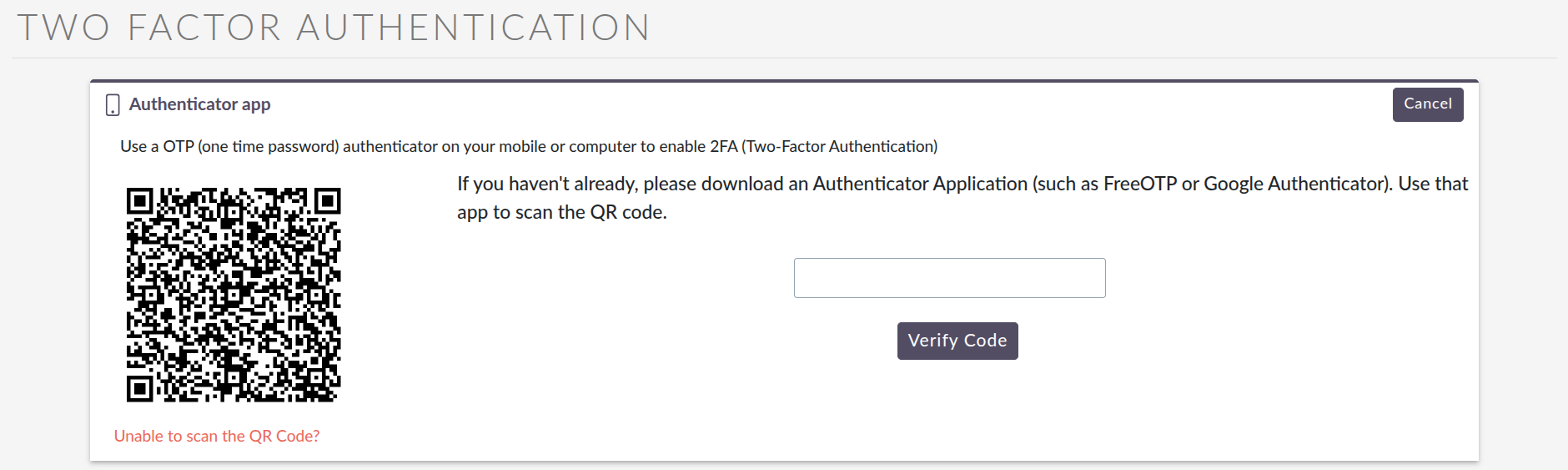
Open your authenticator app on your mobile device (such as Google Authenticator, Microsoft Authenticator, or Authy) and scan the QR code. Once scanned, your app will display a six-digit code — enter this into the field provided in SuiteCRM and click Verify Code to complete setup.
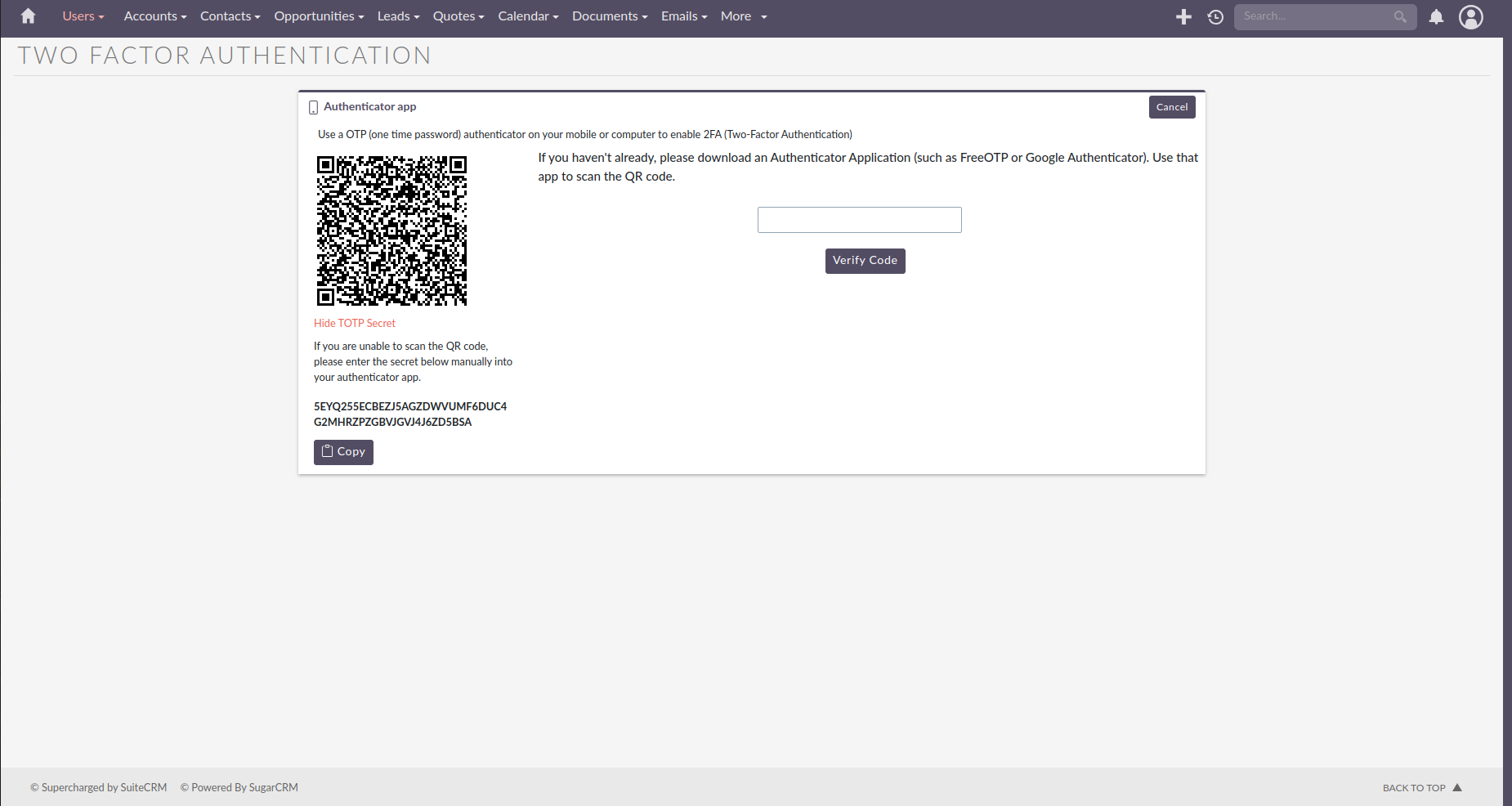
If you are unable to scan the QR code, click Unable to scan the QR Code? to reveal a secret key you can enter manually into your authenticator app. When setting up manually, use the following configuration if prompted: Type: TOTP, Time based: Yes, Interval: 30 seconds, Digits: 6, Algorithm: SHA1.
Recovery and Backup Codes
After successfully enabling Two-Factor Authentication, a set of ten recovery codes will be displayed on screen.
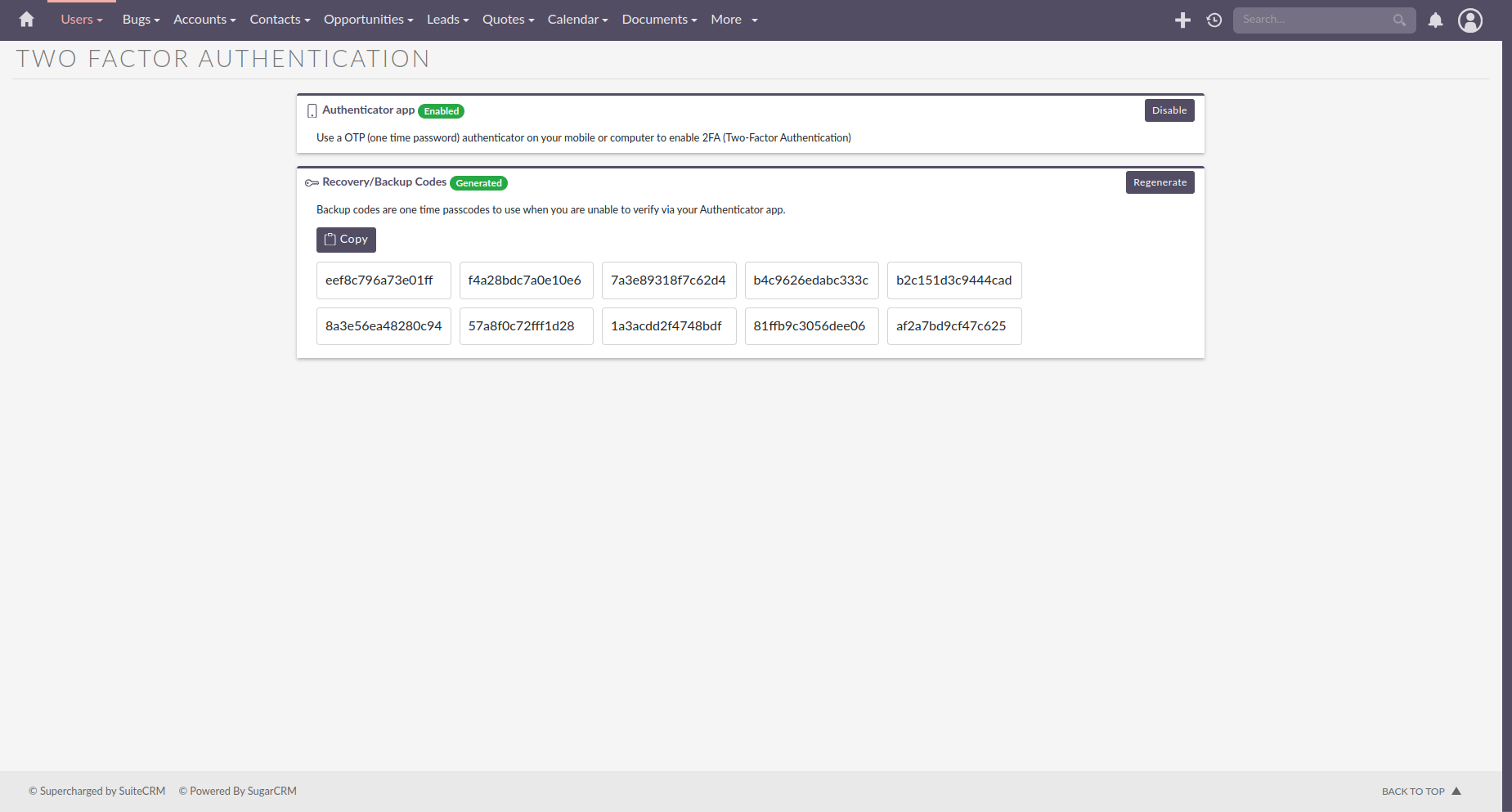
These are one-time use backup codes that can be used to access your account if you are unable to use your authenticator app, for example if you lose access to your mobile device.
These codes will only be displayed once and will not be shown again when you revisit the page. Store them in a safe and secure location immediately.
Each backup code can only be used once. Once used it cannot be used again.
Regenerating Backup Codes
If you have used your backup codes or need to generate a new set:
-
Navigate to the Two-Factor Authentication tab in your profile.
-
Click Two Factor Configuration.
-
Click Regenerate Backup Codes.
-
Enter the current code from your authenticator app to confirm.
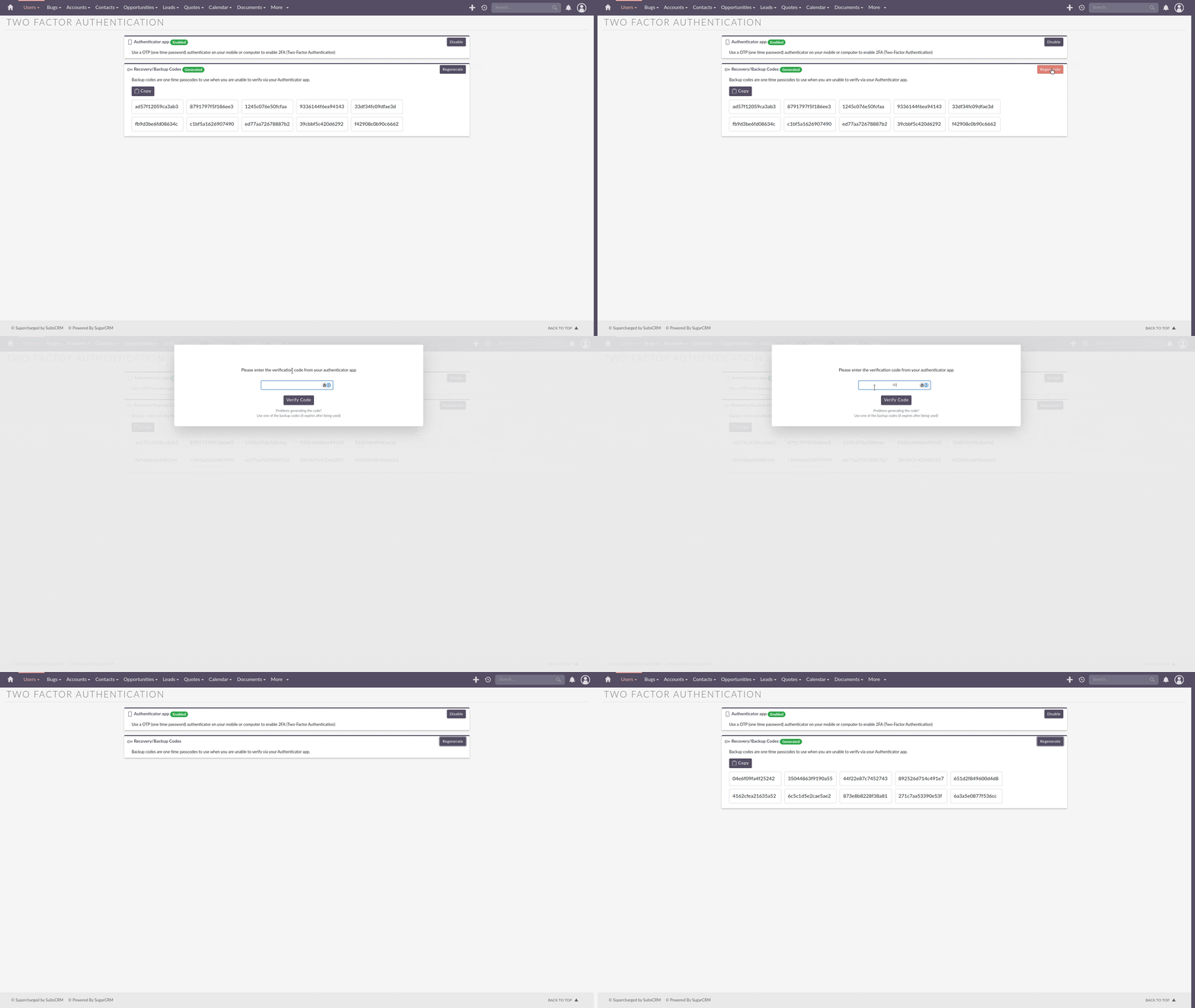
A new set of backup codes will be displayed. Store these securely — the previous codes will no longer be valid.
Logging In with Two-Factor Authentication
Once Two-Factor Authentication is enabled, you will be prompted to enter an authentication code each time you log in. After entering your username and password, a pop-up will appear asking for your six-digit code.
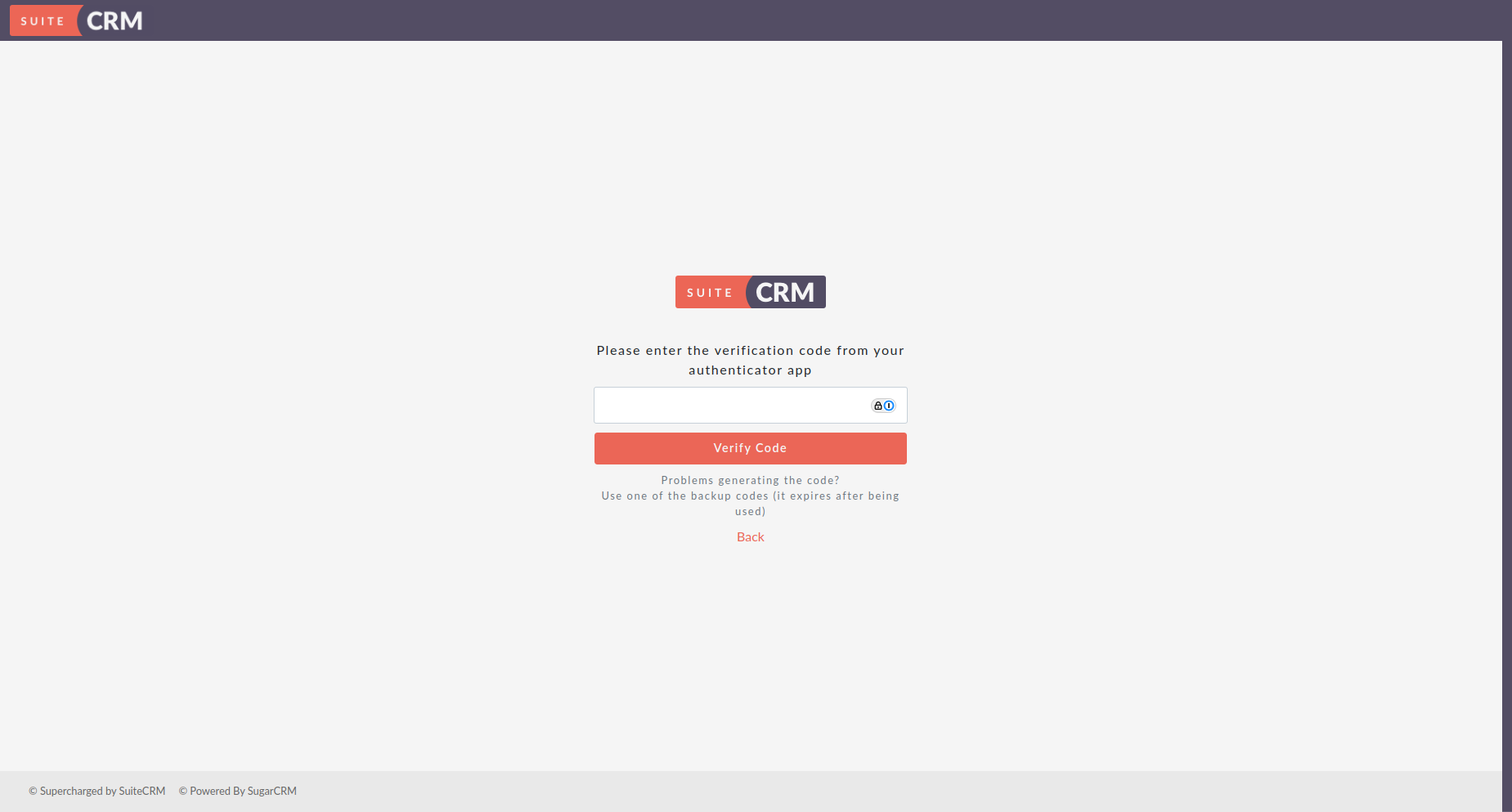
Open your authenticator app, retrieve the current code, and enter it to complete the login process.
Disabling Two-Factor Authentication
To disable Two-Factor Authentication on your account:
-
Navigate to the Two-Factor Authentication tab in your profile.
-
Click Two Factor Configuration.
-
Click Disable.
-
Enter the current code from your authenticator app to confirm.
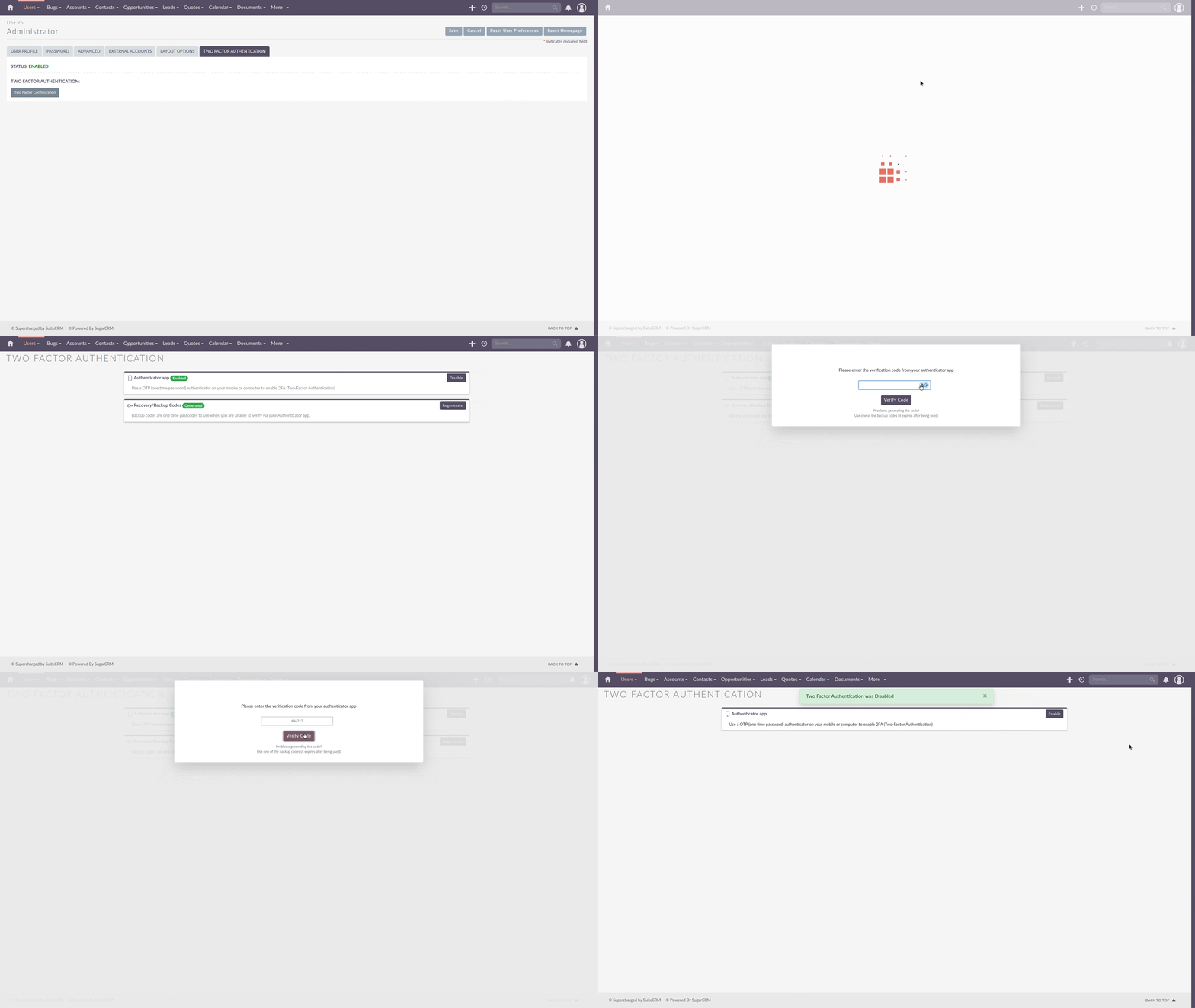
Two-Factor Authentication will then be disabled on your account.
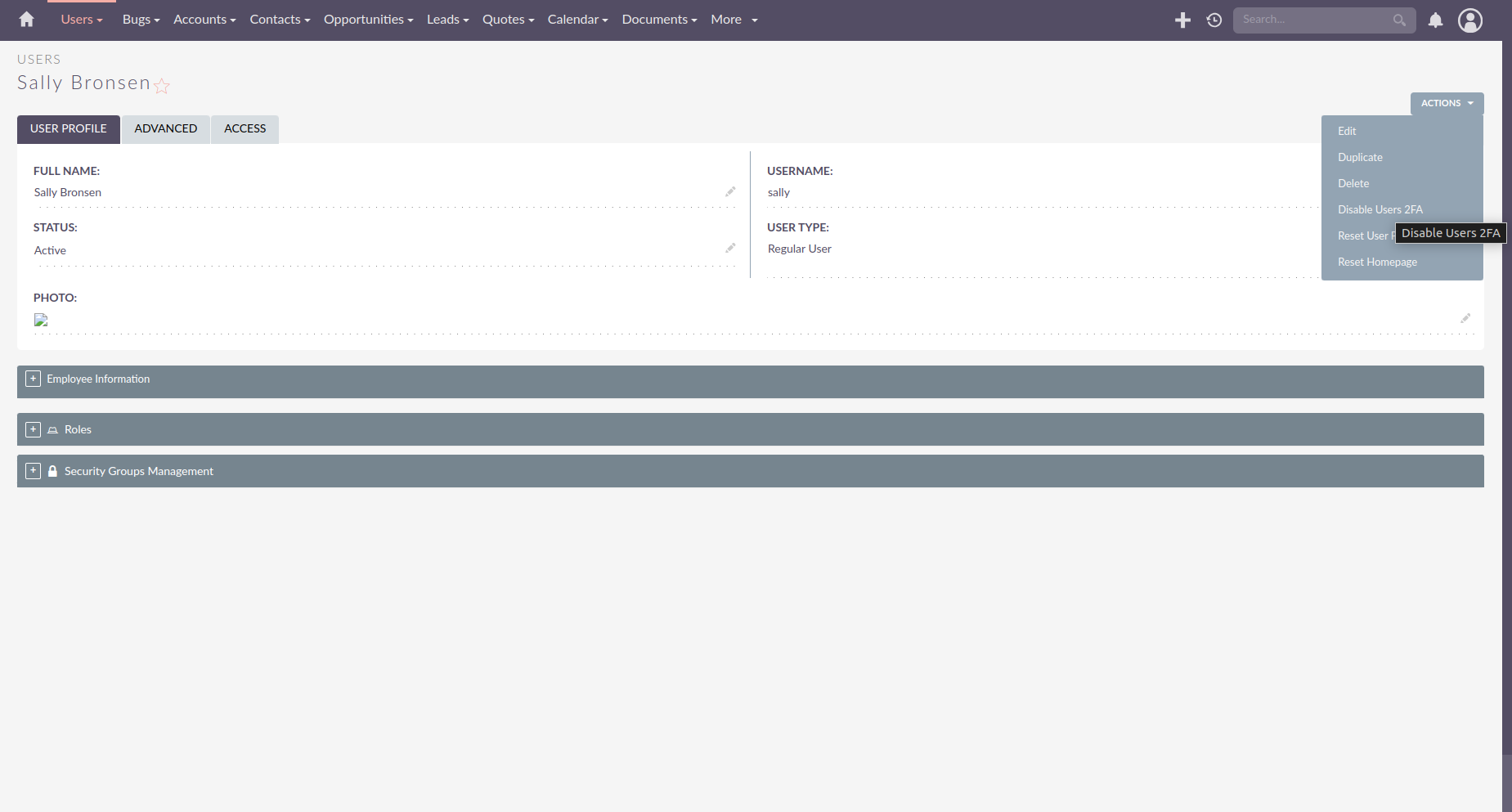
System administrators can also disable Two-Factor Authentication on behalf of a user. If a user has 2FA enabled, a Disable 2FA option will appear in the Actions drop-down when an administrator views that user’s profile.