Navigation
The ability to easily view and navigate to areas of the CRM is key to improved productivity and user adoption. SuiteCRM has a clear UI which has various elements we will cover in this section.
Top navigation menu
The top navigation menu is the main menu users will use to navigate to modules to create and manage records. The standard layout for the top navigation is a list of 10 modules. The ordering for this menu is determined by the order of the modules in Admin → Display Modules and Subpanels. The top navigation menu has six elements. These are:
-
CRM Name – This is the name for the CRM which is specified on installation. This defaults to SuiteCRM.
-
Module Menu – Depending on the user preference, a list of the modules or pre-defined groups of modules, will be displayed. This provides the ability for users to navigate to modules within the CRM.
-
Quick Create – Quick create allows the quick creation of key module records globally within the CRM.
-
Global/Full Text Search – Allows users to search the CRM globally for records/data.
-
Alerts – This shows the number of desktop notifications you have not yet read. Click the bell icon to view and manage pending notifications. See Alerts below for details.
-
User menu – This displays the user name for the user currently logged in. There is a drop down menu which gives users access to Employees, their profile, the about page and a link to logout.

To view a module, you can click on the module name. If you have chosen to group the modules, then you first need to hover over the group name and select the module from the list. After selecting the module, you will be taken to the List View of that module. For full details on views, read the Views section of this user guide.
Hovering over a module name will produce a drop down menu. This drop down menu displays the Actions and Recently Viewed records for that module.
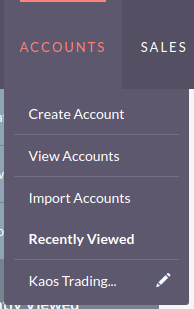
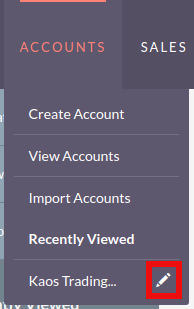
You can edit records displayed in the Recently Viewed section of the drop down menu by clicking the pencil icon. This will direct you to the Edit View for that record.
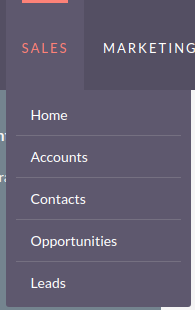
There is also a grouped tab navigation structure for SuiteCRM. Users can set this option in their user preferences. For full details on modifying user preferences, see the Managing Your Profile section of this user guide.

The grouped tab navigation menu gives the user the ability to group modules within a tab such as the Sales Tab.
Quick Create
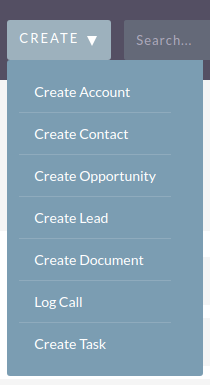
You can click the 'create' icon in the top navigation menu to access the Quick Create options. This is a list of commonly used modules with the ability to create new records within these modules from any location.
Sidebar
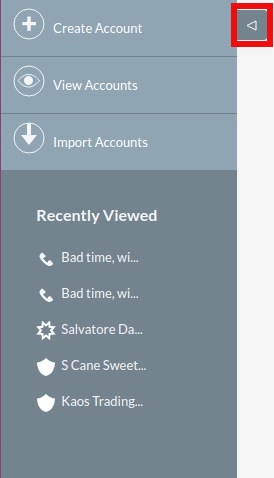
The sidebar is part of the responsive theme and is a user configurable option. The sidebar can be expanded and collapsed by clicking on the button highlighted below.
Actions
This displays the Actions for the module you are currently viewing. For example, if you are viewing the Accounts module, the actions that display are: Create Account, View Accounts, Import Accounts. This provides you with one-click access to module actions.
Recently Viewed
This section displays the last 10 records you have viewed. This leaves a breadcrumbs trail so that previously viewed records can be quickly and easily accessed via the sidebar. There is also the option to click the pencil icon, which will take you directly to the Edit View of the record.
Alerts
The bell icon in the top navigation bar shows a count of pending desktop notifications — alerts for upcoming Calls and Meetings that have popup reminders set.

Click the bell icon to open the notification list.
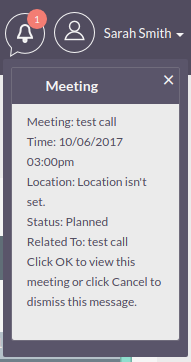
From here you can:
-
Click a notification: navigate directly to the related record (Call or Meeting).
-
Click the x icon: dismiss and clear that individual notification.
If no unread notifications exist, no count is shown.
To enable or disable desktop notifications in your browser, see the Desktop Notifications setting in your profile’s Advanced Tab.