Searching
Searching is a vital part of working within SuiteCRM, allowing you to quickly locate the records you need across what can be very large data sets. SuiteCRM provides two main ways to search for records: Global Search and Module Search.
Global Search
Global Search allows you to search for records across a range of modules in your SuiteCRM instance from a single search bar, without having to navigate into each module individually. It is accessible from the Top Navigation Bar on every page.

To perform a global search, type your search term into the search bar and press Enter on your keyboard or click the Magnifying Glass icon. SuiteCRM will return matching records grouped by module, so you can quickly see results across Contacts, Accounts, and more all at once. Clicking on any result will take you directly to that record.
The search results page also provides two useful options for refining what is displayed:
-
Results per module: Controls how many records are shown per module in the results. This defaults to 10 but can be adjusted as needed.
-
Modules: Allows you to filter the results to specific modules only, so you can narrow your focus to the areas most relevant to your search.
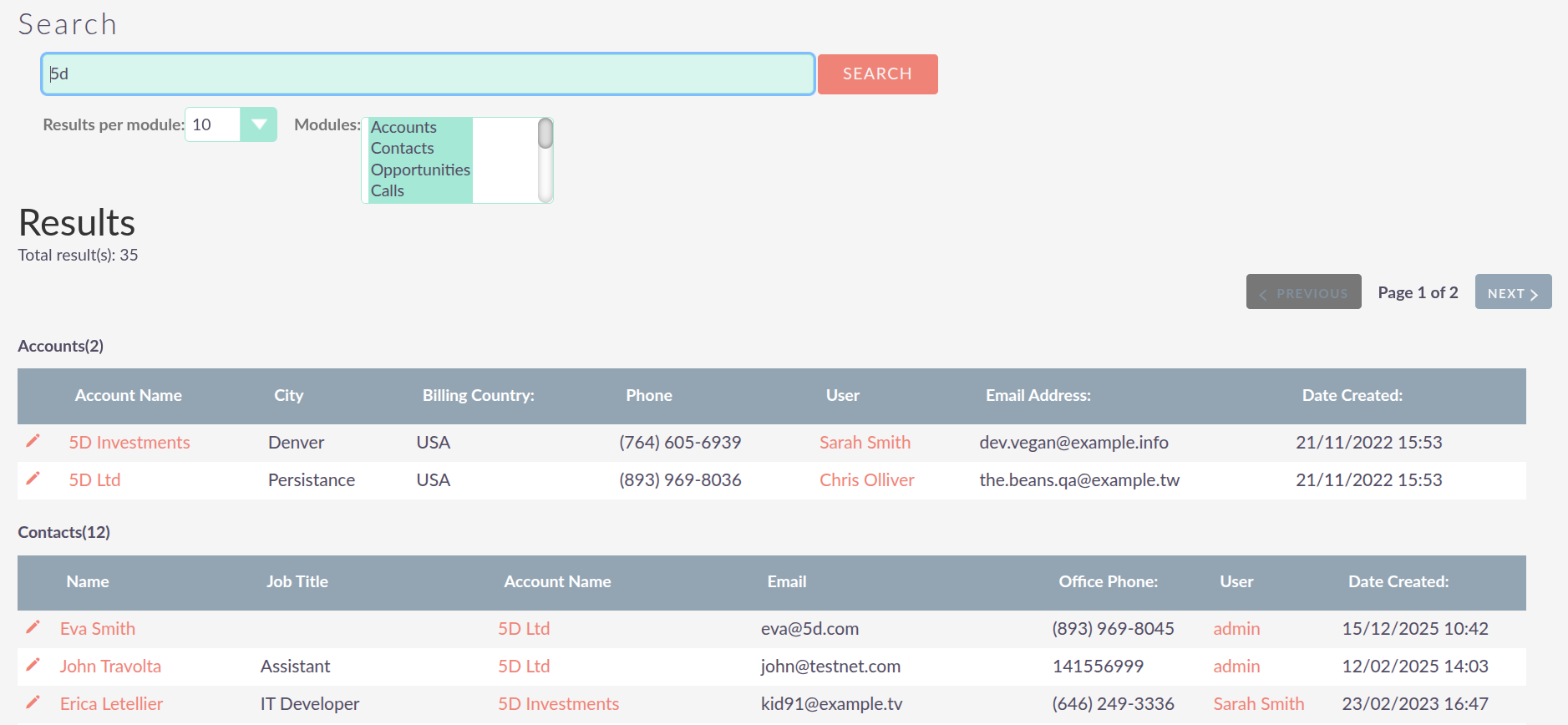
The modules included in Global Search results can be configured by a system administrator.
Module Search
Module Search is available within every module in SuiteCRM and allows you to filter and find records within that specific module. It is accessed from the List View of any module, where a search filter panel is displayed at the top of the record list.
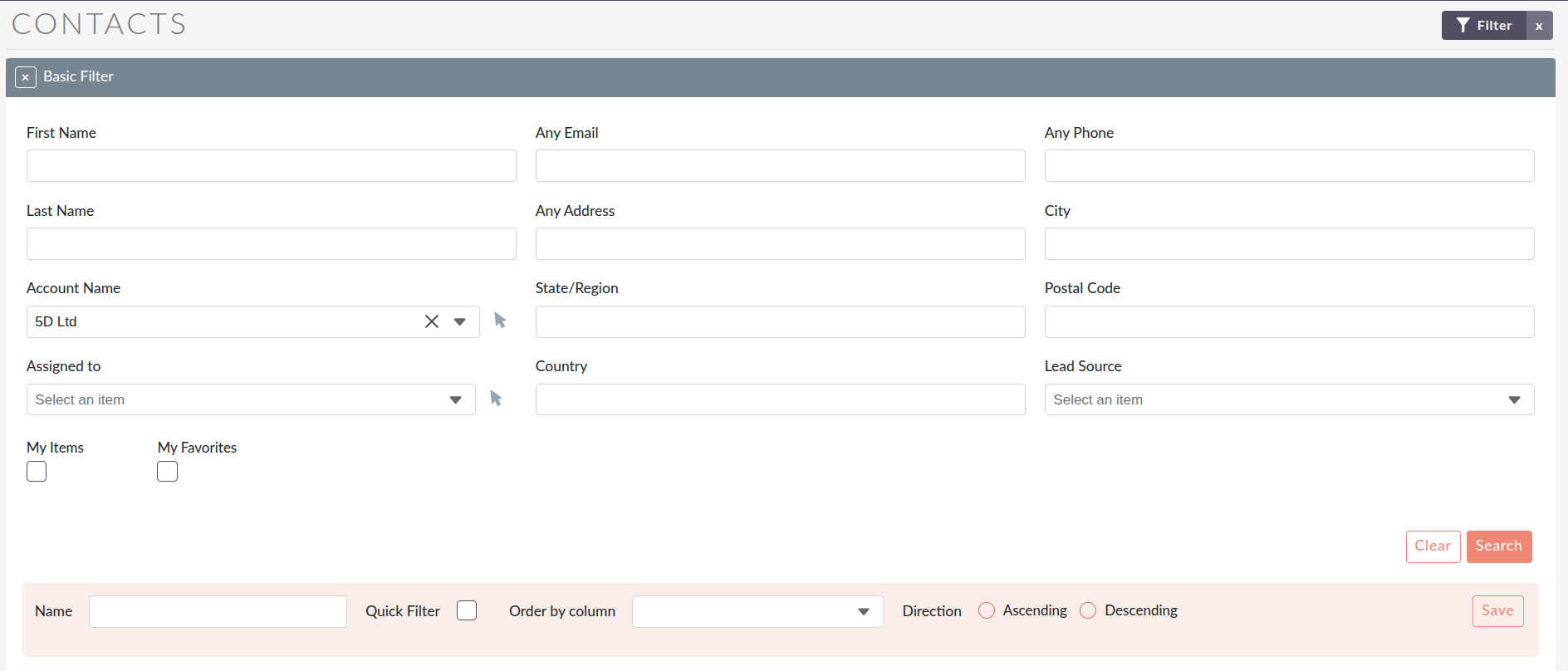
Using Module Search
To search within a module, enter your criteria into the relevant fields in the filter panel and click Search. The List View will update to display only the records that match your criteria.
Some useful things to know when using Module Search:
-
Search is persistent: Once you have performed a search, the filter criteria will be retained as you navigate away from and back to the module. This means you will not lose your search results when clicking into a record and returning to the list.
-
Clearing a search: To clear your current search and return to the full record list, click the Clear button in the filter panel and then click Search.
-
My Items: Most modules include a My Items option within the filter. Enabling this will restrict results to records that are assigned to your user account, which is useful for quickly viewing your own workload.
-
My Favourites: Most modules also include a My Favourites option. Enabling this will restrict the results to only records you have marked as a favourite. Records can be marked as a favourite by clicking the Star icon on a record.
The fields available in the module search filter are configured per module and can be modified by a system administrator via Studio. If you need additional fields added to the search filter for a particular module, speak to your system administrator.
Saving and Loading Searches
If you regularly search using the same criteria, you can save your filter for easy reuse. Once you have set up your filter criteria, click Save Search and give it a name. Your saved searches will then be accessible from the My Filters drop-down within the search panel, allowing you to quickly load them at any time without having to re-enter the criteria manually.

To load a saved search, select it from the My Filters drop-down. This will return results that match the criteria specified in the saved search.
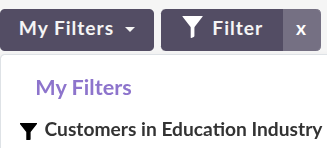
Quick Filters
Quick Filters give you one-click access to your most frequently used saved filters directly from the List View, without having to open the filter panel each time.
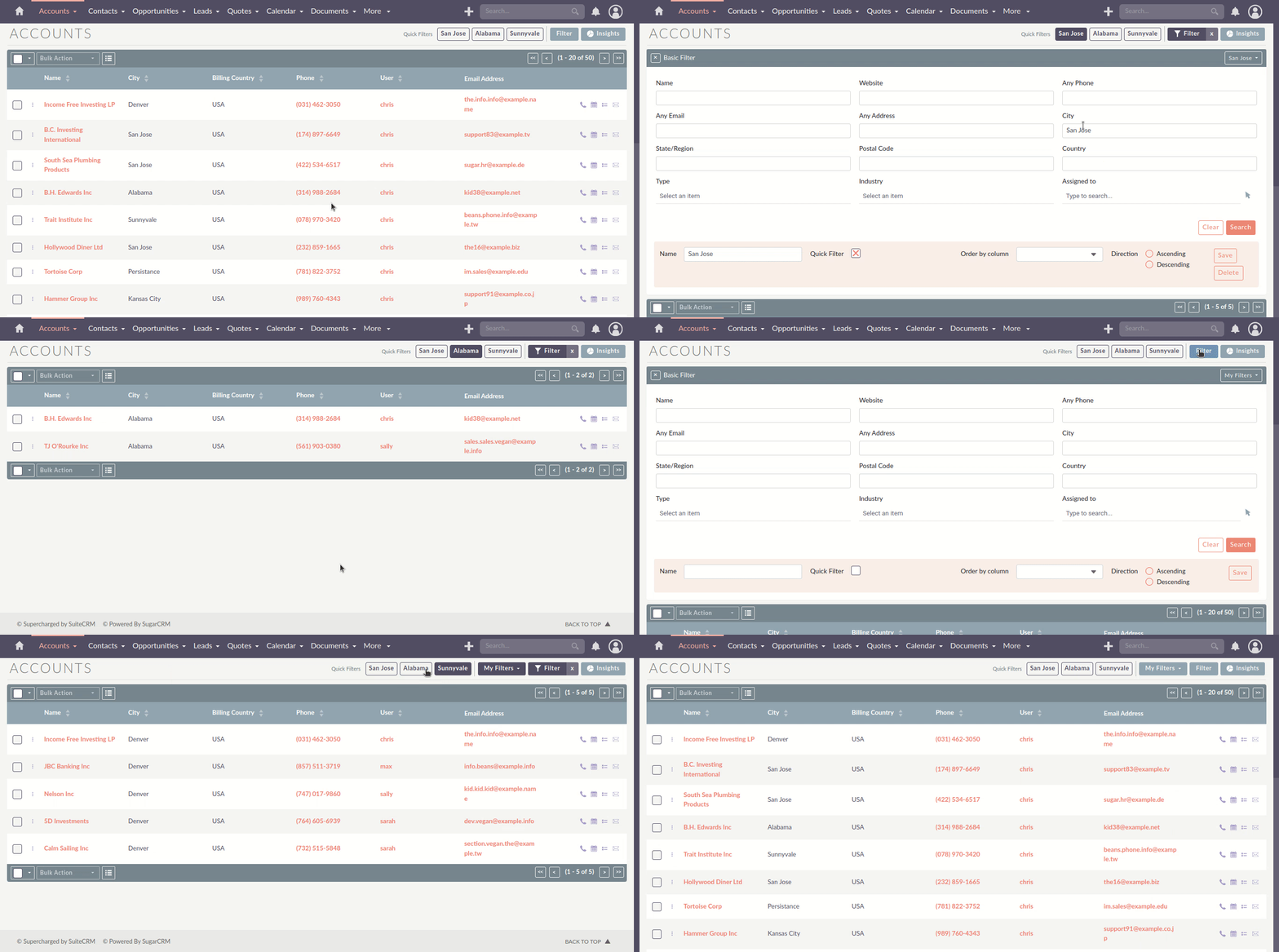
Creating a Quick Filter
-
Navigate to the module’s List View and click the Filter button.
-
Fill in your filter criteria.
-
Give the filter a name, check the Quick Filter checkbox, and click Save.
Your new Quick Filter will appear as a button alongside the filter panel. Click it to instantly apply that filter. Click X on the button, or click it again, to remove it.
Using Quick Filters
When a Quick Filter is selected it is highlighted and the results update accordingly.
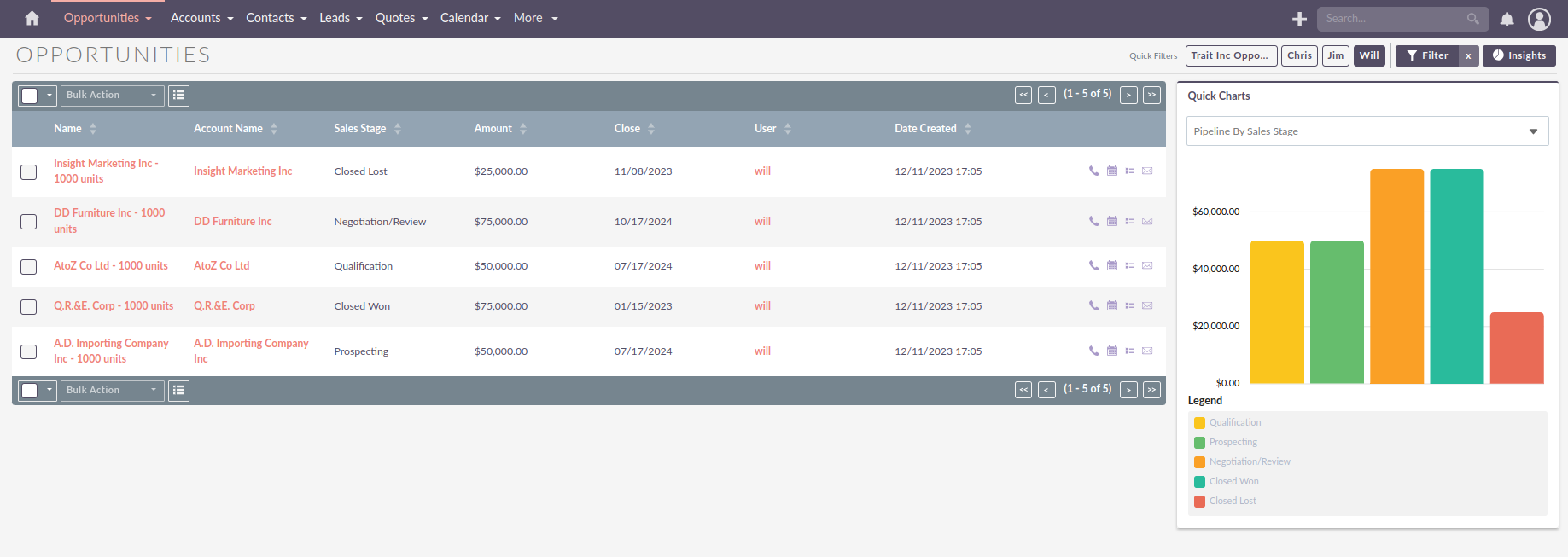
If more Quick Filters exist than can be displayed inline, the remaining filters are grouped into a My Filters dropdown.
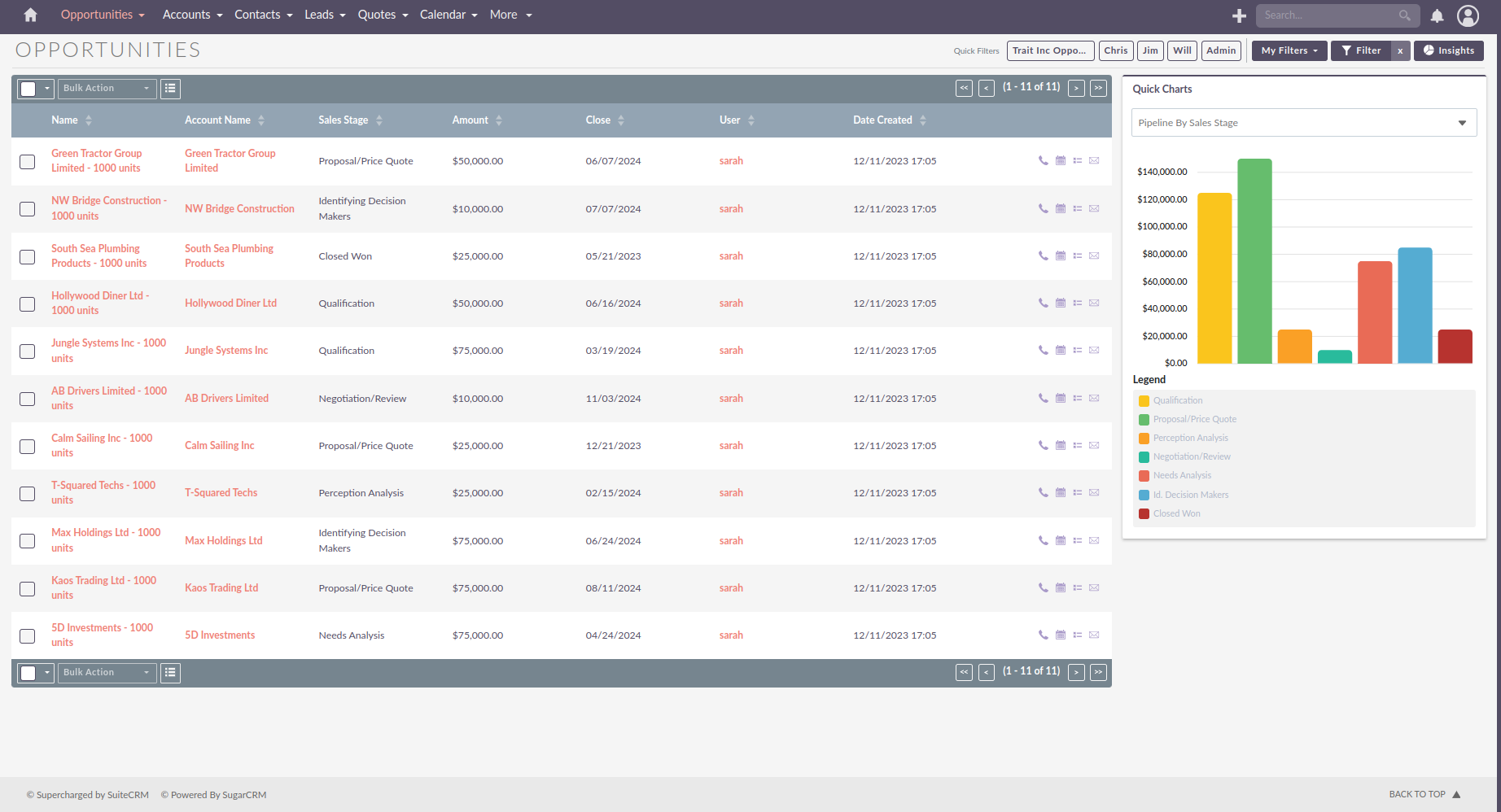
To switch between filters, simply select the one you want and the results will update.
The number of Quick Filters displayed before collapsing into a dropdown, and their behaviour at different screen sizes, can be configured by a developer. See Quick Filters Configuration.
Using Wildcards in Search
Wildcards can be used in both Global Search and Module Search to broaden your results when you do not know the full or exact text you are looking for. The percent sign ( % ) is used as the wildcard character and acts as a placeholder that can represent any number of characters. For example:
-
Searching for
%smithwill return records where the field ends with "smith", such as "John Smith". -
Searching for
%smith%will return any record where the field contains "smith" anywhere within it.