Cases
In SuiteCRM Cases are used to record interactions with Customers when they ask for help or advice, for example in a Sales or Support function. A Case can be created, updated when a User is working on it, assigned to a colleague and closed when resolved. At each stage of the Case the User can track and update the incoming and outgoing conversation thread so a clear record of what has occurred is registered in the CRM. Cases can be related to individual records such as Accounts, Contacts and Bugs.
Key Fields
-
Subject: a brief description of the issue. This is the required field and is the primary identifier shown in List Views and email notifications.
-
State: controls whether the case is Open or Closed. Drives which Status values are available.
-
Status: a more granular stage within the State. Open statuses include New, Assigned, Pending Input; Closed statuses include Rejected and Closed. Administrators can customise these values using the Dropdown Editor.
-
Priority: the urgency of the case: P1 (Urgent), P2 (High), P3 (Medium).
-
Account Name: the Account the case belongs to. Linking to an Account gives you the full customer context and makes the case visible from the Account’s sub-panel.
-
Description: the full detail of the issue as reported.
-
Resolution: how the issue was resolved. Completing this field helps builds a knowledge base of solutions that can be referenced for future cases.
-
Assigned To: the user responsible for resolving the case.
Relationships
From a Case record you can view and manage all associated records via sub-panels:
-
Contacts: the individuals associated with this case.
-
Account: the organisation the case belongs to.
-
Bugs: known software bugs linked to the case.
-
Activities: Calls, Meetings and Tasks related to resolving the case.
-
History: emails and completed activities, including all update threads from the Case.
-
Documents / Notes: supporting files and attachments.
SuiteCRM includes a built-in Maps feature. A map panel showing the associated account’s address is available on Case records. See Maps for details.
For information on working with sub-panels and relationships, see Relationships & Subpanels.
For standard record operations including searching, editing, duplicating, merging and importing, see Record Management.
Case Updates
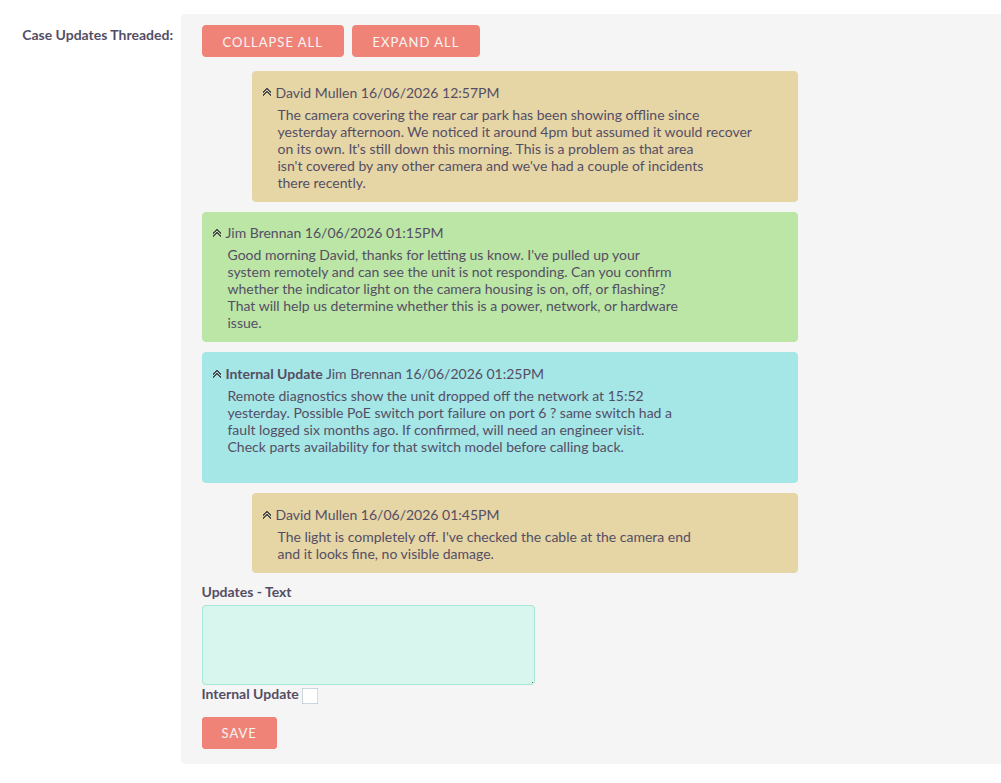
The Case Updates tab on the Case Detail View shows a chronological threaded log of all activity on the case, including updates posted by SuiteCRM users and responses from contacts.
Adding an Update
An Update text field appears at the bottom of the Case Edit View. Enter your update text and click Save. SuiteCRM records the update in the thread and sends an email notification to all Contacts related to the case.
Check Internal Update to record the update privately. Internal updates are visible in the Case Updates thread in SuiteCRM but are not emailed to contacts and are not visible on the customer portal, if setup.
Creating Cases from Inbound Email
Cases can be created automatically from inbound email using a group email account. See Email in the admin documentation for configuration details.