App Passwords
Some email providers generate a separate password for use with a specific application, rather than requiring your main account password. This is called an app password. App passwords are typically required when you have two-step verification (or similar account security) enabled on your email account and the application does not support modern OAuth authentication.
Gmail is used as the example in this guide. Other providers such as Yahoo Mail offer similar app password functionality through their own account security settings.
If your organisation uses OAuth to connect SuiteCRM to Gmail or Microsoft 365, you do not need an app password. See the Email Settings documentation for OAuth configuration.
Generating an App Password (Gmail)
1. Enable 2-Step Verification
App passwords require 2-Step Verification to be enabled on your Google account before you can generate one.
2. Create an App Password
-
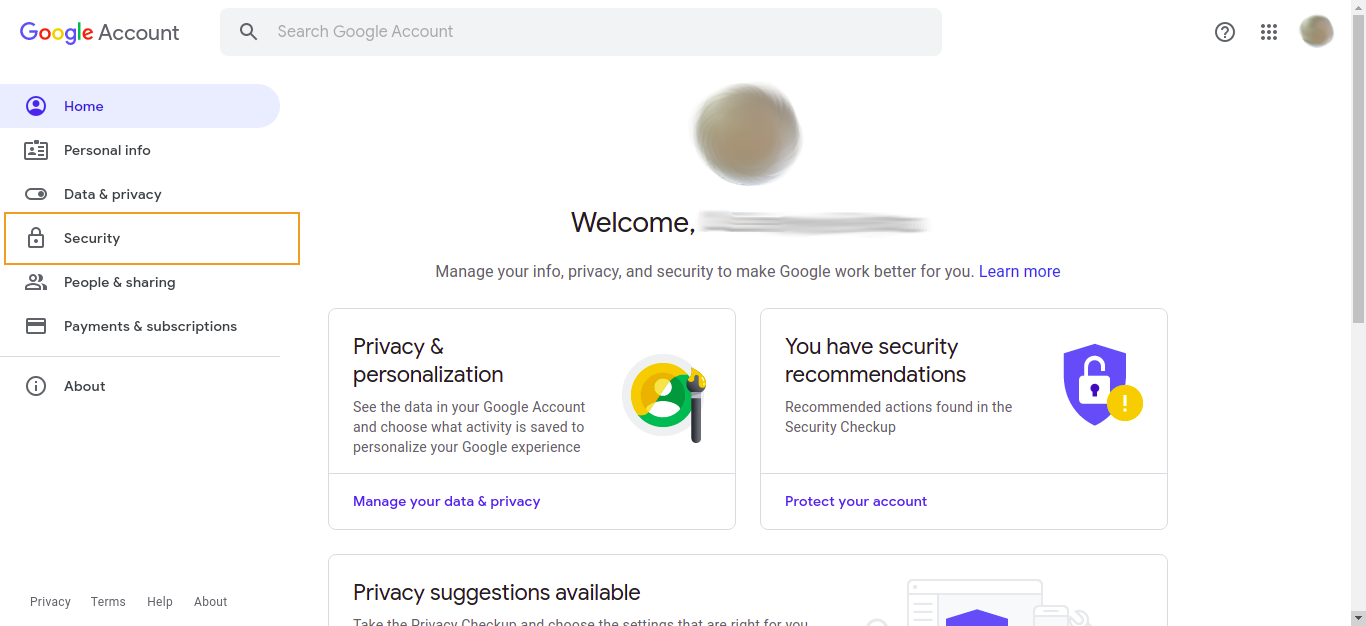
In your Google Account, go to the Security section.
-
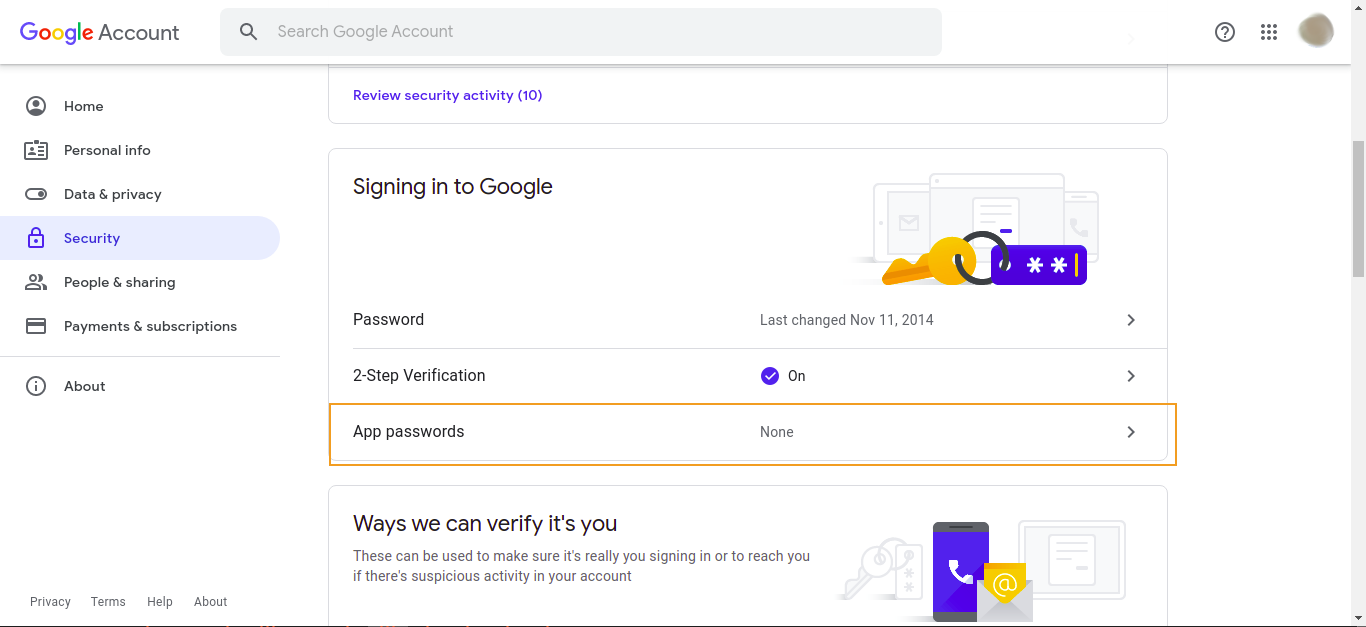
Go to App Passwords. You may be asked to sign in again.
-
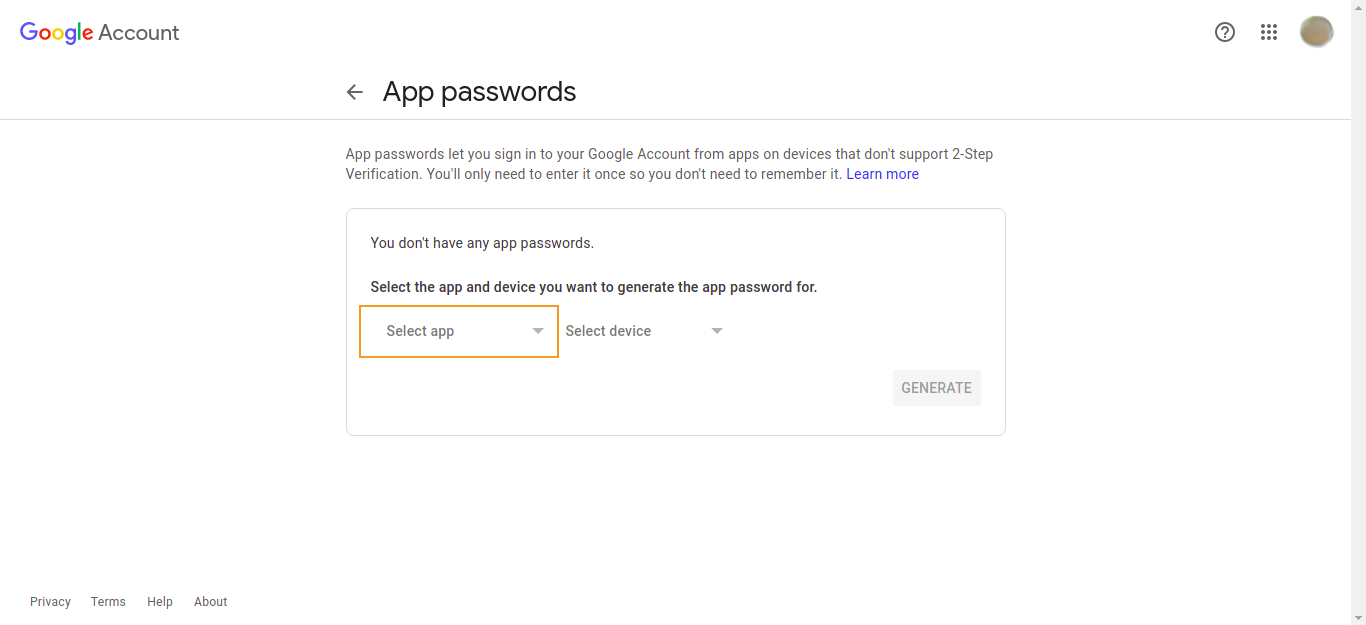
Click the Select app drop-down.
-
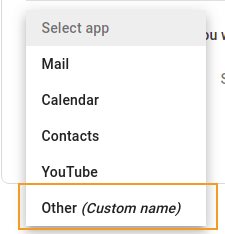
Select Other (Custom name).
-
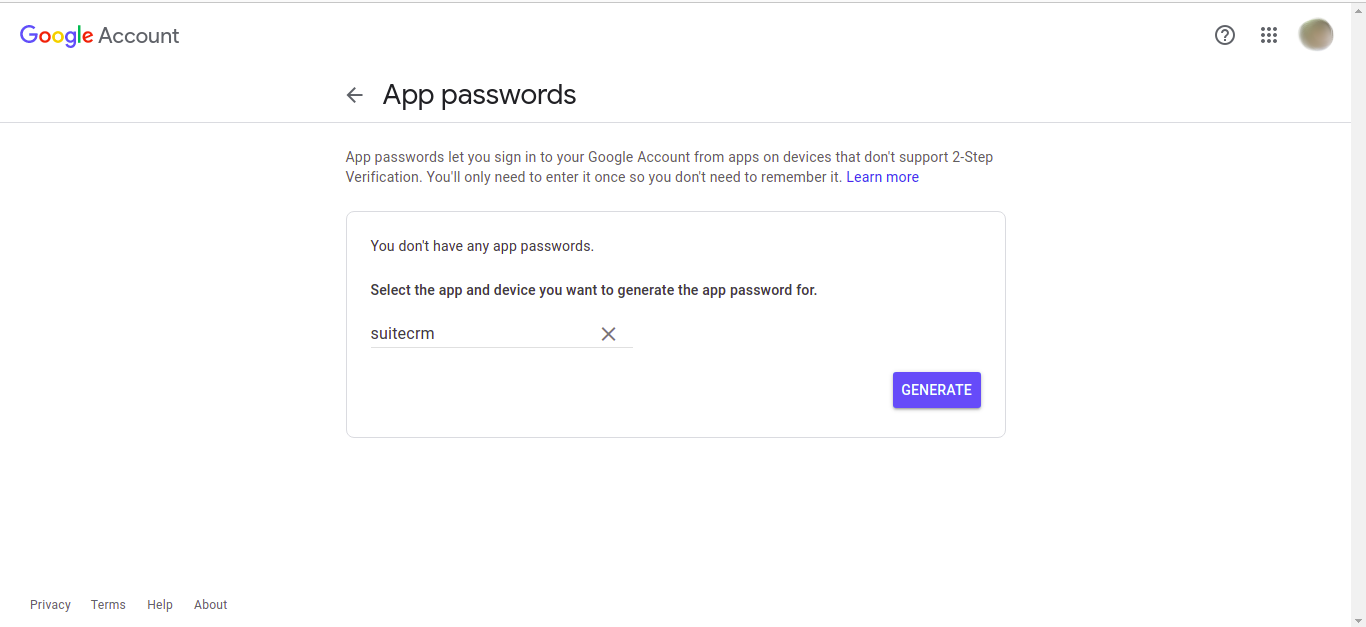
Enter a name such as
suitecrm.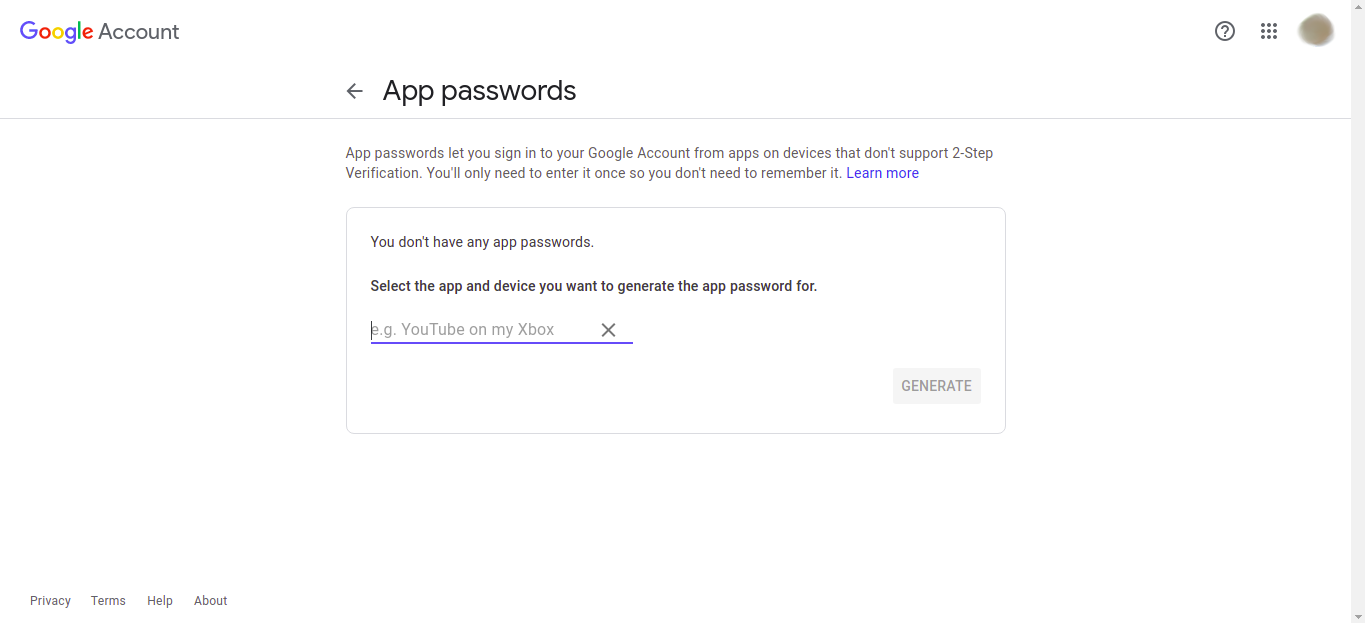
-
Click Generate.
-
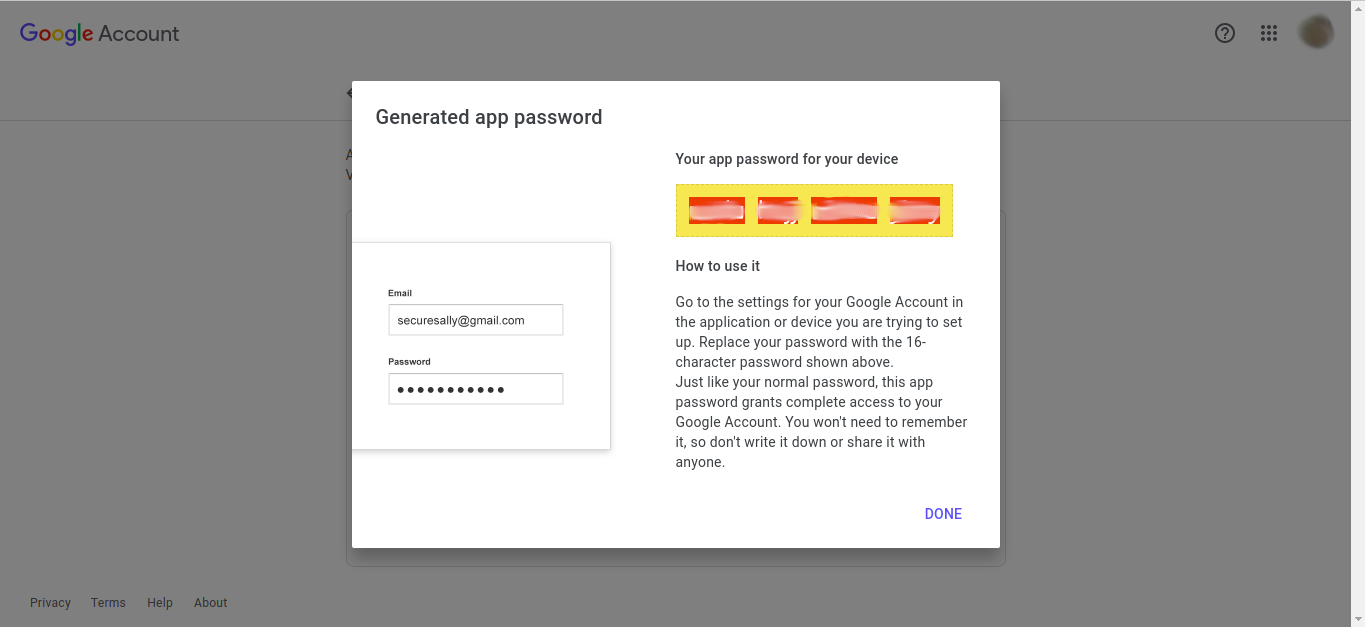
Copy the generated password from the modal that appears. This password will not be shown again — if you lose it you will need to generate a new one.
Using the App Password in SuiteCRM
The generated app password is used in place of your regular email account password wherever SuiteCRM asks for an email password.
System Outbound Email (Admin)
-
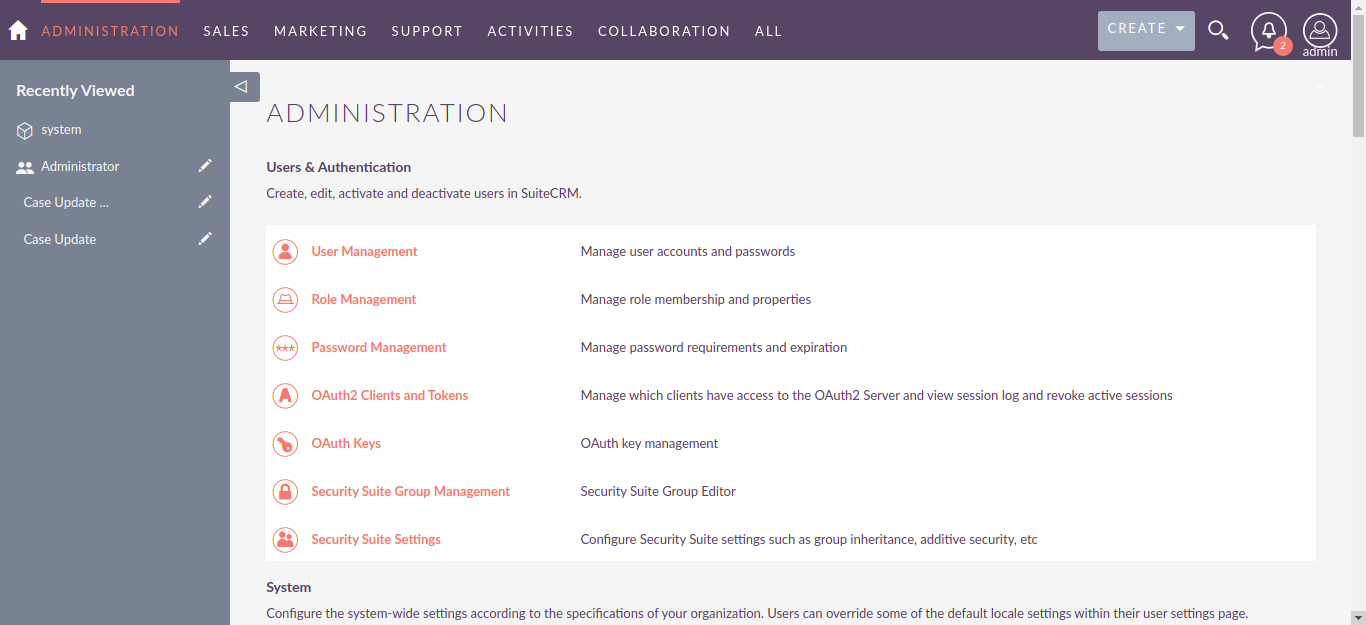
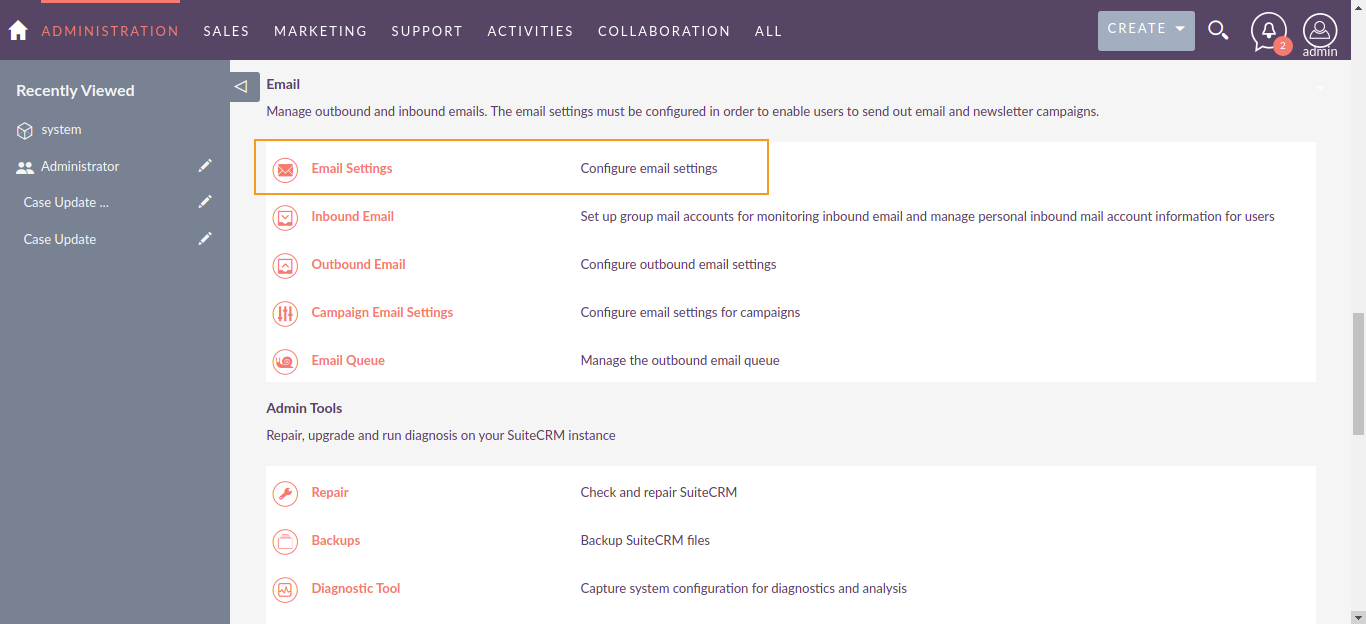
Go to the Admin panel.
-
Select Email Settings from the Email section.
-
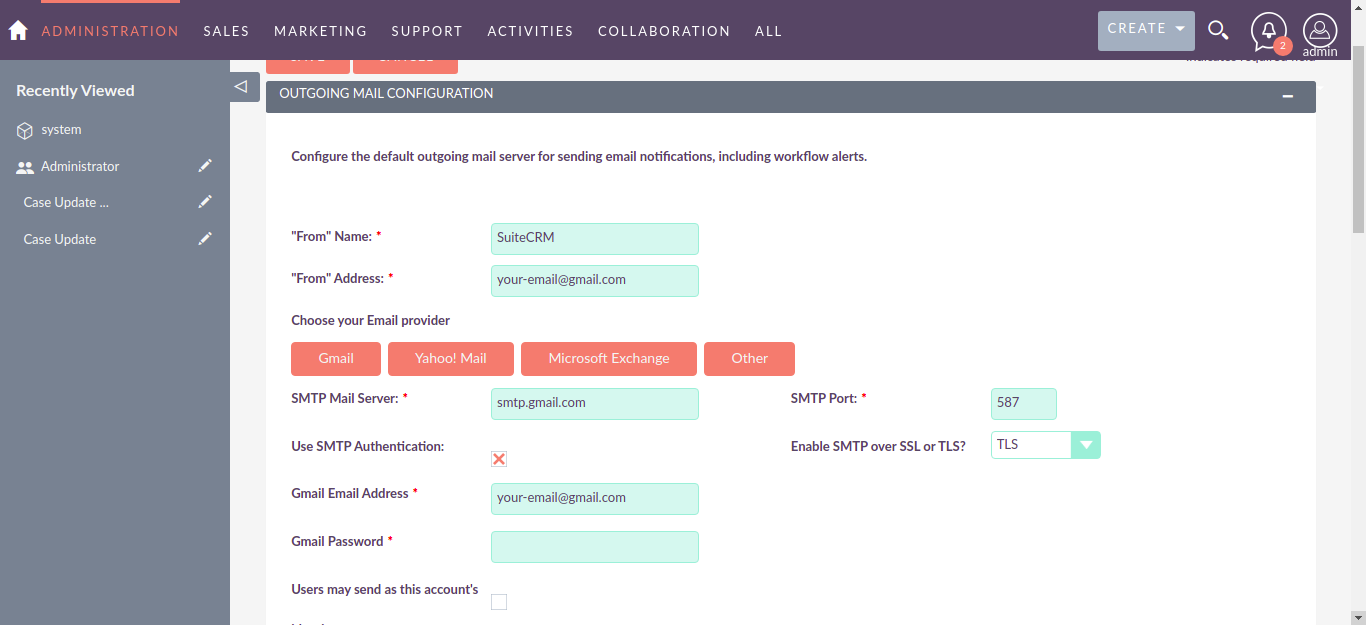
Select Gmail under Choose your Email provider, enter your email address, and paste the app password into the Gmail Password field.
-
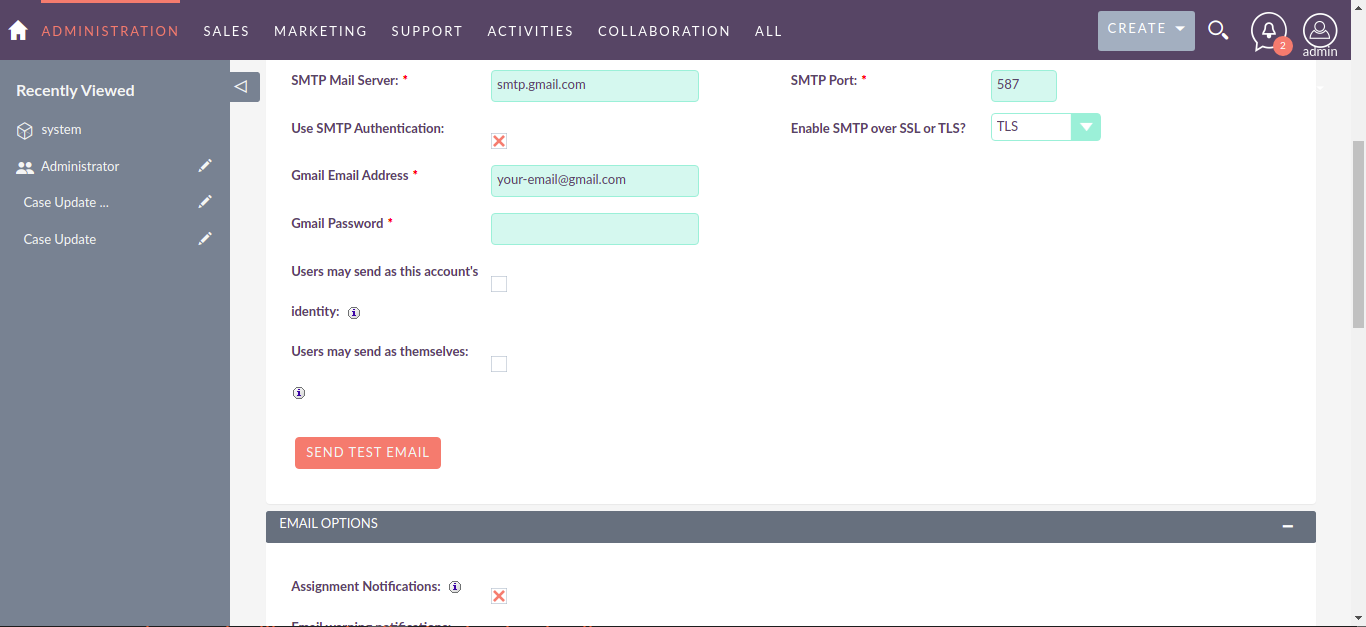
Click Send Test Email to verify the connection.
-
Click SAVE.
Personal Email Account (User)
The app password can also be used when setting up a personal mail account in your user profile. Enter it as the password when configuring your incoming (IMAP) and outgoing (SMTP) mail account settings. See Email Setup for the full process.