$sugar_config['calendar_sync']['external_calendar_name'] = 'My Company CRM';Administrator Setup Guide
Overview
As an administrator, you configure global synchronization settings that apply to all users. This includes sync frequency, performance controls, conflict resolution strategies, and the scheduler configuration.
Users manage their own calendar connections through the Calendar Accounts module, but the settings you configure here determine how synchronization behaves system-wide.
Accessing Calendar Sync Settings
-
Log in as an administrator
-
Navigate to Administration panel
-
Locate the Calendar Sync Settings option in the administration menu
-
Click to access the configuration interface
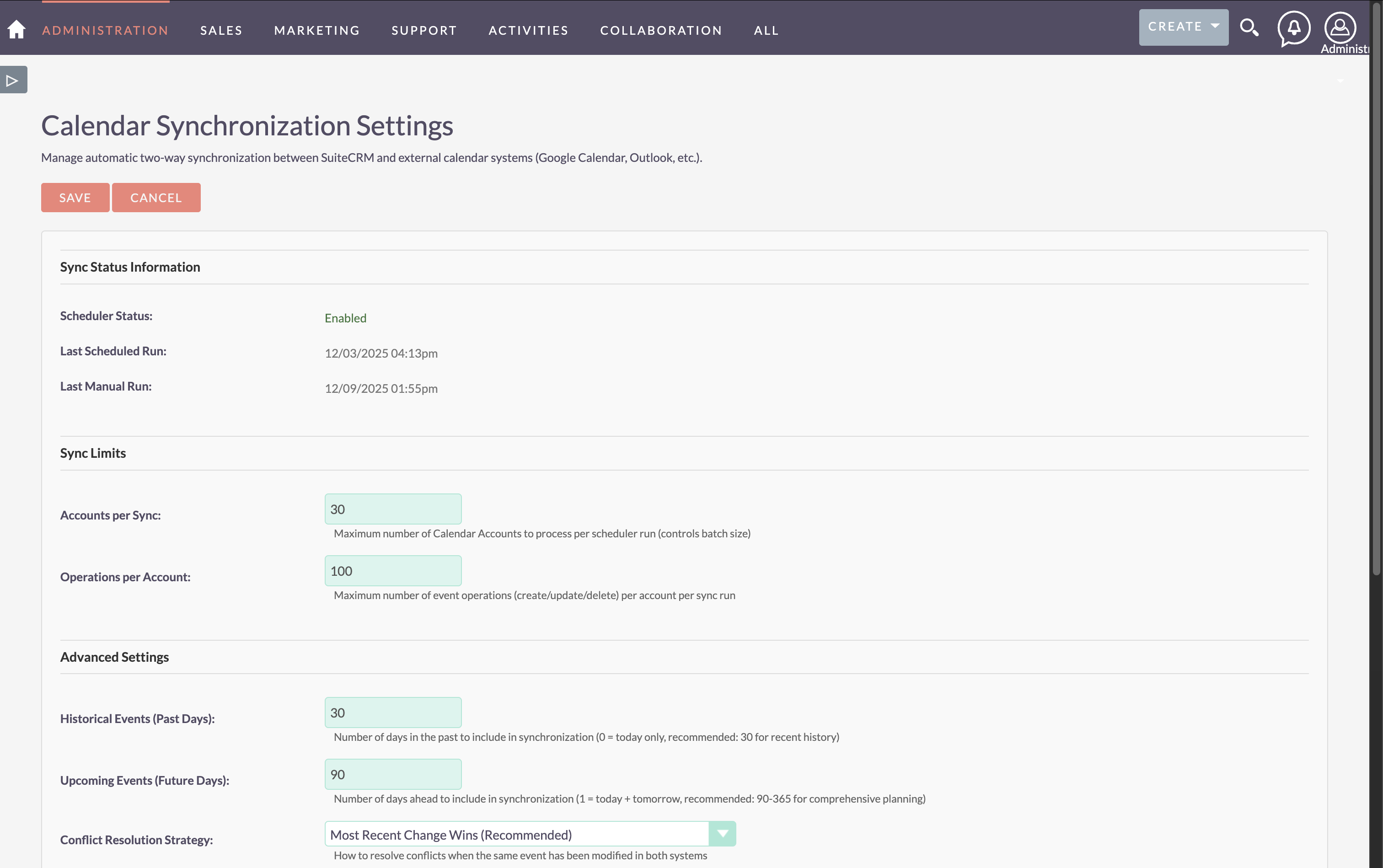
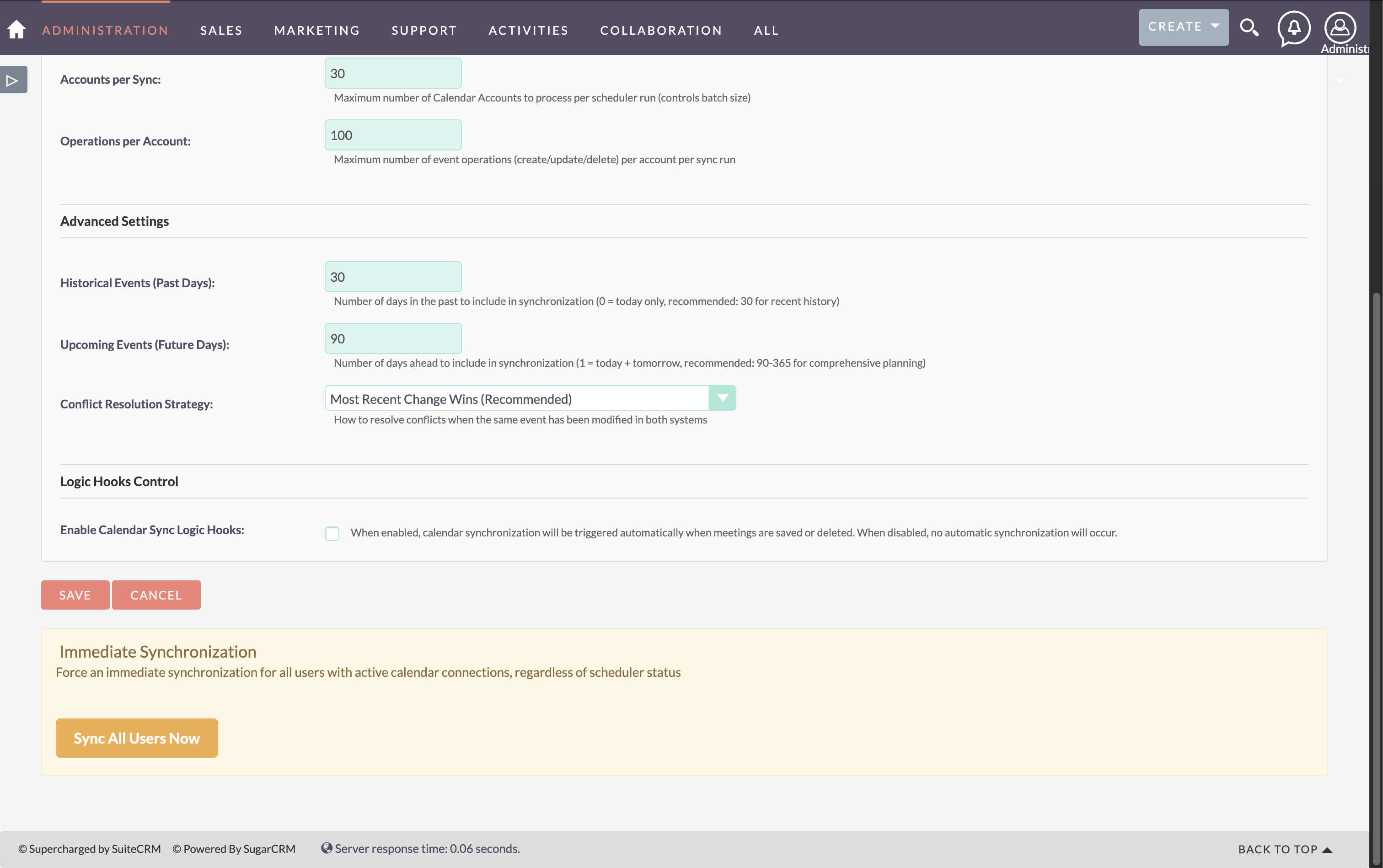
The settings page displays both configuration options and current synchronization status information.
Sync Status Information
The settings page displays real-time synchronization status:
-
Scheduler Status: Shows whether the calendar sync scheduler is Enabled or Disabled
-
Last Scheduled Run: Timestamp of the most recent automatic synchronization
-
Last Manual Run: Timestamp of the most recent administrator-triggered sync
These status indicators help you verify that synchronization is running as expected and troubleshoot timing issues.
Sync Limits
These settings control resource usage during synchronization.
Accounts per Sync
Maximum number of Calendar Accounts to process per scheduler run (controls batch size).
-
Default: 30
-
Range: 1-200
-
Impact: Higher values process more accounts per run but use more resources
Operations per Account
Maximum number of event operations (create/update/delete) per account per sync run.
-
Default: 100
-
Range: 1-1000
-
Impact: Limits how many changes are processed per account to prevent timeouts
Advanced Settings
These settings determine the time range for synchronization. Events outside this window are ignored.
Past Days
Synchronize calendar data from the last X days.
-
Range: 0-365 days
-
Default: 30 days
-
Recommendation:
-
30 days for recent history
-
0 to sync only today and future events
-
90+ days if you need historical event analysis
-
Future Days
Synchronize calendar data for the next X days.
-
Range: 1-730 days
-
Default: 90 days
-
Recommendation:
-
90 days (3 months) for standard planning
-
180-365 days (6-12 months) for long-term planning
-
Larger values have minimal performance impact.
Conflict Resolution Strategy
This determines how to handle events modified in both SuiteCRM and the external calendar between sync runs.
| Option | Description |
|---|---|
Most Recent Change Wins (Recommended) |
The version with the most recent modification timestamp overwrites the other |
External Calendar Priority |
External calendar changes always take precedence over SuiteCRM changes |
SuiteCRM Priority |
SuiteCRM changes always take precedence over external calendar changes |
Choosing the Right Strategy
The best strategy depends on how your team uses the system:
Scenario: Simultaneous Edits
At 2:00 PM, you change a meeting time from 3:00 PM to 4:00 PM in SuiteCRM. At 2:05 PM, a colleague changes the same meeting from 3:00 PM to 5:00 PM in Google Calendar. Sync runs at 2:10 PM.
-
Most Recent Change Wins: The meeting ends up at 5:00 PM (colleague’s change at 2:05 PM wins)
-
External Calendar Priority: The meeting ends up at 5:00 PM (external always wins)
-
SuiteCRM Priority: The meeting ends up at 4:00 PM (SuiteCRM always wins)
Scenario: Mobile Calendar Edits
Your team frequently adjusts meeting times on mobile devices using their calendar apps.
-
Recommended: External Calendar Priority - ensures mobile edits are never overwritten
-
Not Recommended: SuiteCRM Priority - mobile edits would be lost
Scenario: Sales Team Planning
Your sales team plans all meetings in SuiteCRM, and the external calendar is primarily for viewing.
-
Recommended: SuiteCRM Priority - ensures the CRM is the source of truth
-
Alternative: Most Recent Change Wins - allows flexibility but requires awareness
External Calendar Name
Customizes the calendar name displayed in external calendar systems when SuiteCRM creates or syncs events.
-
Default: "SuiteCRM"
To customize this setting, add to your config_override.php:
This setting only affects how the calendar appears in the external system. It does not change the calendar name within SuiteCRM.
Logic Hooks Control
Enable Calendar Sync Logic Hooks
When enabled, calendar synchronization triggers automatically when meetings are saved or deleted in SuiteCRM. When disabled, synchronization only occurs via the scheduler or manual trigger.
-
Default: Disabled
-
Recommendation: Enable for real-time synchronization; disable if you prefer batch synchronization only
To enable logic hooks, check the Enable Calendar Sync Logic Hooks option in the Calendar Sync Settings page.
Alternatively, add to your config_override.php:
$sugar_config['calendar_sync']['enable_calendar_sync_logic_hooks'] = true;Impact of Enabling Logic Hooks:
-
Meeting changes in SuiteCRM trigger immediate sync to external calendar
-
Provides near real-time synchronization
-
May impact performance during bulk meeting operations
-
Works in addition to scheduled synchronization
Immediate Synchronization
Force an immediate synchronization for all users with active calendar connections, regardless of scheduler status.
Sync All Users Now
-
Navigate to Calendar Sync Settings
-
Scroll to the Immediate Synchronization section at the bottom
-
Click the Sync All Users Now button
This triggers synchronization for all users with active calendar accounts. This may temporarily impact system performance on systems with many users.
When to Use Manual Sync:
-
After changing global sync settings
-
After a system upgrade or migration
-
When troubleshooting synchronization issues
-
To force an immediate sync without waiting for the scheduler
Scheduler Configuration
The Calendar Accounts Sync scheduler job controls automatic synchronization frequency.
Configuring Sync Frequency
-
Go to Administration > Scheduler
-
Find the Calendar Accounts Sync job (previously named Google Sync Calendars in legacy versions)
-
Edit the job to configure:
-
Status: Active or Inactive
-
Interval: How often the job runs (e.g., "As often as possible")
-
Range: Start and end dates for the job (typically start date to "perpetual" for no end)
-
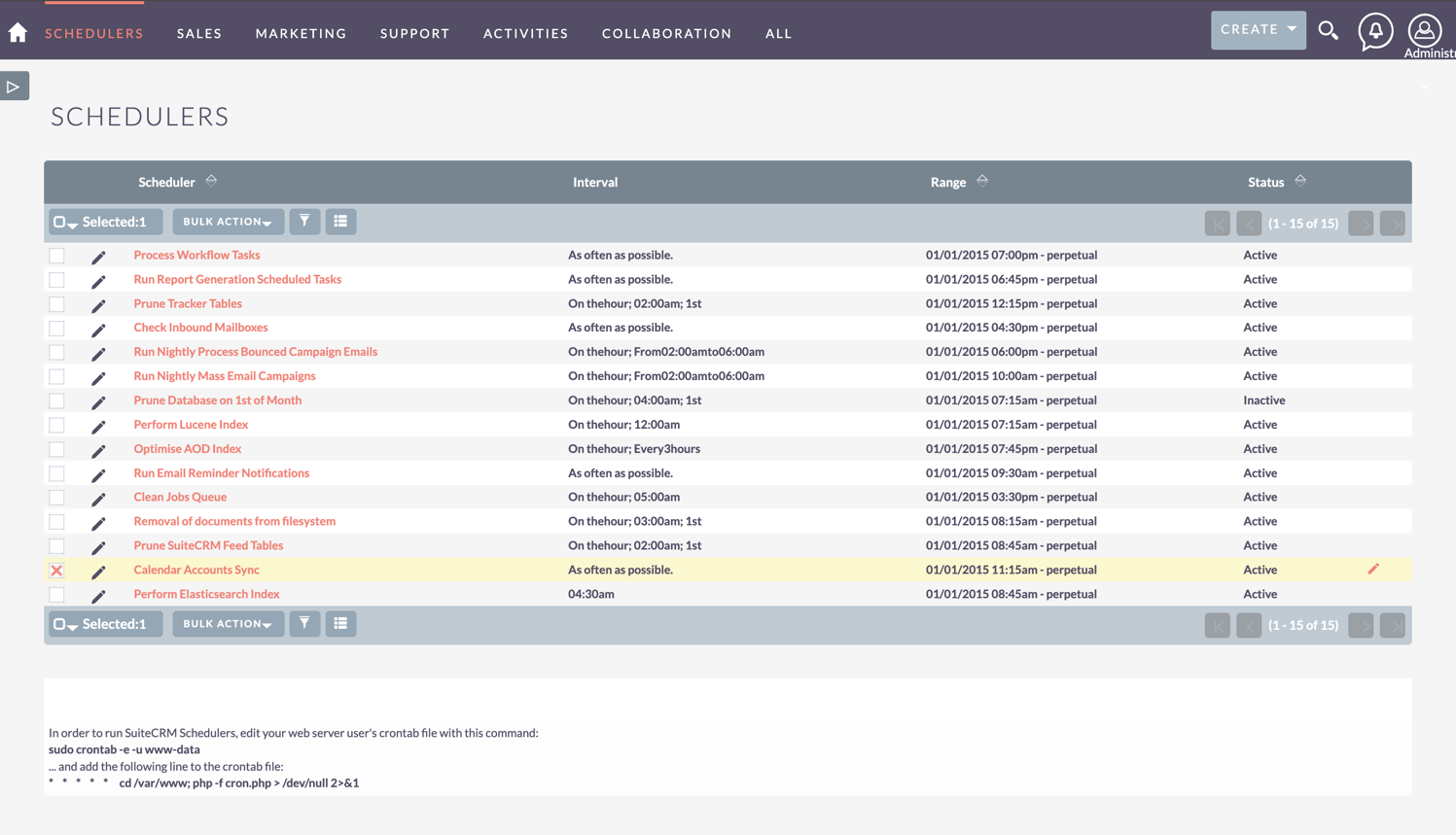
Recommended Settings:
-
Interval: "As often as possible" for near real-time sync
-
Status: Active (synchronization will not run automatically if inactive)
-
Range: Start date to perpetual (no end date)
For general scheduler setup and cron configuration, see Scheduler in the System documentation.
Verifying Scheduler is Running
To confirm the scheduler is functioning:
-
Check the Scheduler Status in Calendar Sync Settings shows "Enabled"
-
Verify the Last Scheduled Run timestamp updates after each interval
-
Check the SuiteCRM log for entries using class-specific prefixes (e.g.,
[CalendarSync],[CalendarSyncOrchestrator],[GoogleCalendarProvider]) - requires appropriate log level such asinfoordebug
If the scheduler is not running, see Scheduler Configuration to set up the cron job.
Additional Configuration Options
The following advanced settings are configured in config_override.php rather than through the UI.
Deletion Behavior
By default, deletions sync in both directions. You can control deletion synchronization to protect data in specific scenarios:
// Add to config_override.php

// Control whether deletions in SuiteCRM also delete events in external calendar
$sugar_config['calendar_sync']['allow_external_event_deletion'] = true;  // Default: true

// Control whether deletions in external calendar also delete meetings in SuiteCRM
$sugar_config['calendar_sync']['allow_internal_event_deletion'] = true;  // Default: true
When to Change Defaults:
-
Set
allow_external_event_deletiontofalseto preserve external calendar events when SuiteCRM meetings are deleted -
Set
allow_internal_event_deletiontofalseto preserve SuiteCRM meetings when external calendar events are deleted -
Both can be set to
falsefor one-way sync behavior where deletions never propagate
Disabling deletion sync can lead to orphaned events that exist in one system but not the other. Consider your data retention policies before modifying these settings.
Next Steps
After configuring the administrator settings:
-
Review User Guide to understand the user experience
-
See CalDAV Provider Guide if your users will connect to CalDAV servers
-
Check Understanding Sync & Troubleshooting for diagnostic information
-
Consult Advanced Topics & Migration for complete configuration reference